

WhatsApp submission
Alongside web upload, email, and the client submission page, clients can send receipts and invoices to Capture over WhatsApp. It’s aimed at the people who actually hold the receipts and rarely deal with the practice directly, so there’s nothing for them to download and no account to create. They tap a link once to connect, then send a document whenever they have one.
How it works
Section titled “How it works”- You share a client’s WhatsApp invite link with whoever sends in their receipts and invoices. 2. They tap the link, which opens a chat with the Otto Capture number, and send the pre-filled message to connect. 3. From then on, they send a photo or PDF straight into that client’s review queue.
Documents submitted over WhatsApp go through the same processing pipeline as any other submission, and appear in your review queue alongside documents from every other source.
Sharing the invite
Section titled “Sharing the invite”Open the client’s settings and go to Client Submission. The WhatsApp area is there, alongside the client’s email address and submission page. The invite link is unique to that client, and the same link works for everyone, so you can pass it to more than one person.
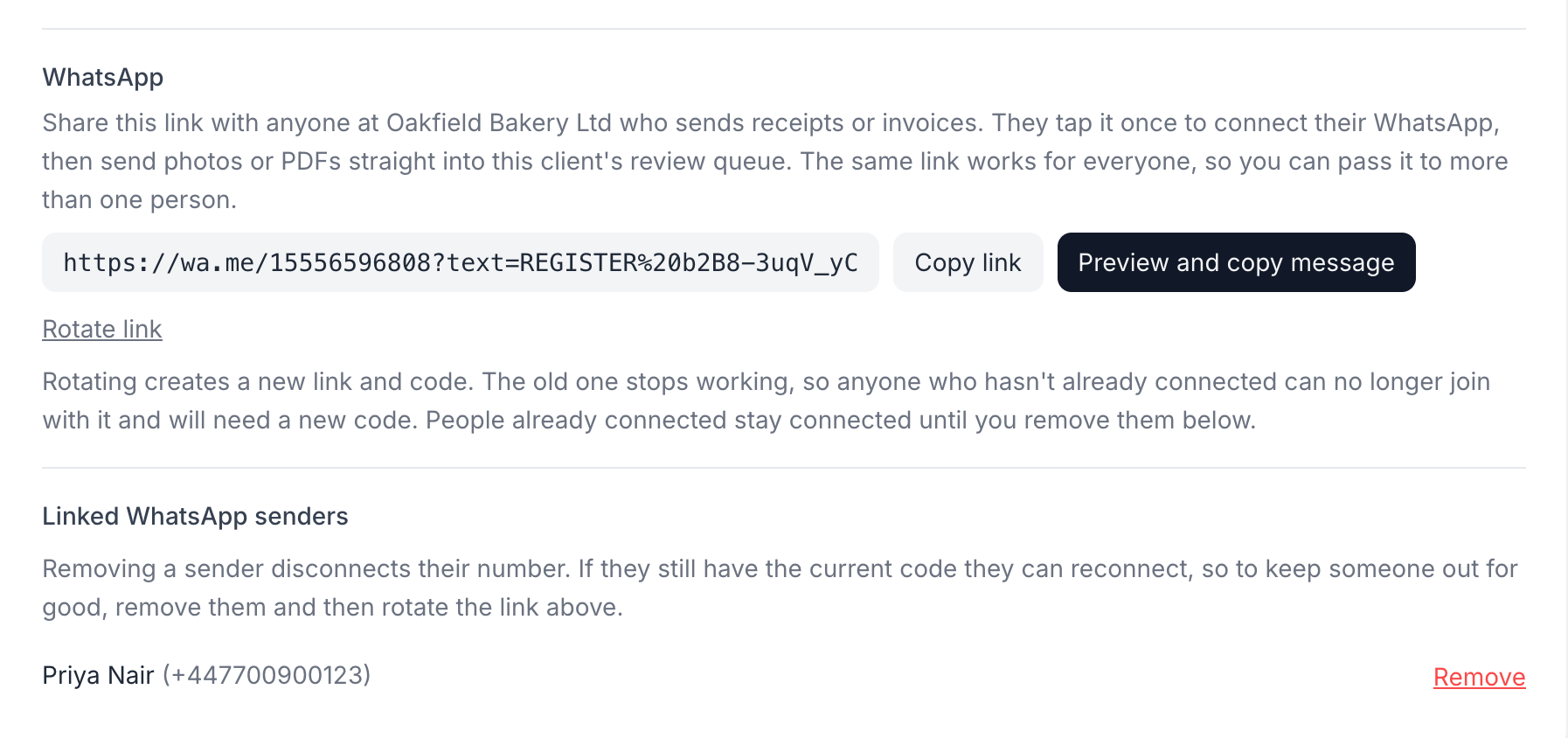
You have two ways to hand it over:
- Copy link copies the raw invite link, ready to paste wherever you like.
- Preview and copy message shows a short, ready-to-send message with the link already in it, written as if it comes from you. Copy the whole message or just the link.
However you share it, the person receiving it doesn’t need an Otto Capture account, and you don’t need to know or register their phone number in advance.
What the person sending documents sees
Section titled “What the person sending documents sees”When they tap the invite link, WhatsApp opens a chat with the Otto Capture number and pre-fills a short registration message. They send it, and a reply confirms they’re connected, naming the client so they can see it worked. If they’d rather type the code by hand, sending the registration code on its own connects them too.
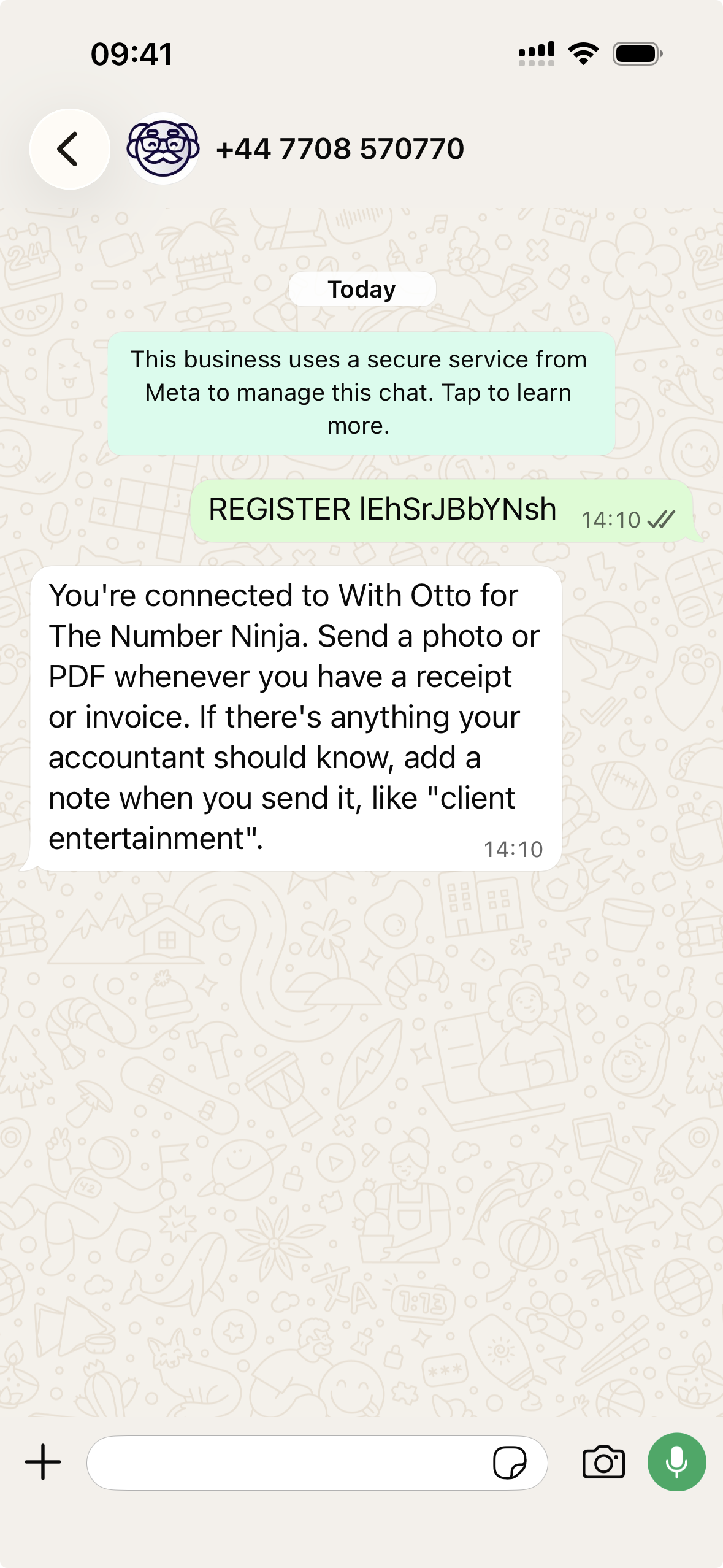
Once connected, they send a document whenever they have a receipt or invoice, and each one is confirmed as received.
Adding a note
Section titled “Adding a note”If there’s something you should know about a document, the sender can add a note when they send it, for example “client entertainment”. The note is captured with the document, so that context is there when you review it.
One number, one client for now
Section titled “One number, one client for now”In this first phase, a WhatsApp number can be connected to one client at a time. If someone who’s already connected to one client sends a different client’s code, they’re told that each number connects to one business for now and asked to contact you. To move them across, remove their number from the first client, after which they can register with the second client’s code.
Managing who’s connected
Section titled “Managing who’s connected”The WhatsApp area lists everyone currently connected to the client under Linked WhatsApp senders, showing each person’s name and number.
- Remove disconnects a sender’s number. They stop being able to submit until they register again.
- Rotate link creates a new invite link and code for the client. The old one stops working, so anyone who hasn’t already connected can no longer join with it. People who are already connected stay connected.
Rotating the link and removing senders are admin-only. Anyone in your organisation can view and share the invite link and message.
What you can send over WhatsApp
Section titled “What you can send over WhatsApp”WhatsApp submission accepts the same file types as web upload and email. A photo or a PDF is what most people send from a phone, which is why the confirmation messages mention those, but other supported formats work too. For the full list, see supported file types.
Content that isn’t a document, such as a voice note, video, or shared location, won’t be processed.