

FreeAgent
Otto Capture connects to FreeAgent so you can publish bills and sales invoices straight into your client’s FreeAgent company. For the connection basics, see Connecting your accounting platform.
Connecting a client
Section titled “Connecting a client”There are two ways to connect FreeAgent: a Company connection for a single business you run, or a Practice connection for adding clients from your FreeAgent practice.
Company
Section titled “Company”A Company connection maps one FreeAgent company to one client in Capture. The person who authorises the connection needs permission to manage Bills in that company.
-
From the Clients page in Capture, click Add client, then choose the FreeAgent option described as I run my own business
-
Sign in to FreeAgent and authorise Capture for the company
-
You’ll be redirected back to Capture, and Capture connects the company as a single client
Practice
Section titled “Practice”If you’re a FreeAgent practice, you connect once and then add any of your managed clients. You don’t authorise each client separately.
-
From the Clients page in Capture, click Add client, then choose the FreeAgent option described as Add a FreeAgent client from your practice
-
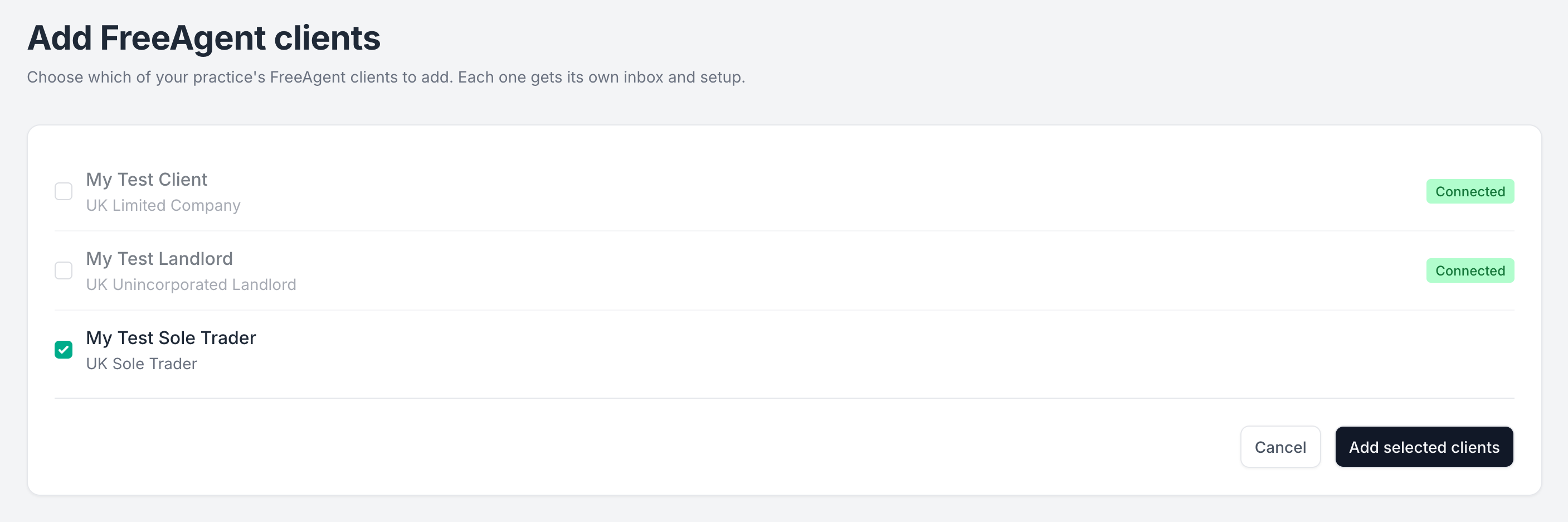
Capture shows the Add FreeAgent clients page, listing your practice’s FreeAgent clients with their entity type
-
Tick the clients you want and click Add selected clients. Capture creates a client for each, with its own inbox and setup
Every client you add this way shares the one practice connection, so there’s a single sign-in to keep healthy. Adding more later needs no new authorisation, just another visit to the Add FreeAgent clients page, where clients you’ve already added show Connected and only the rest can be selected.
Permissions
Section titled “Permissions”The authorising user needs permission to manage Bills in FreeAgent. Capture uses this access only to read the reference data it needs, create contacts that are not yet in FreeAgent, and publish bills, invoices, and credit notes. If Capture’s access isn’t high enough, the client moves to Connection failed, and someone with the right permission needs to reconnect it before Capture can sync or Otto can publish.
The one exception is Missing receipts, which reads a client’s bank transactions when you ask it to. For a client connected as a single company, that needs Banking access or higher. Without it, the fetch is refused, but the client stays connected and Otto carries on publishing. See Access FreeAgent needs.
Synced data
Section titled “Synced data”Once connected, Capture syncs the following from FreeAgent:
| Data | Purpose |
|---|---|
| Contacts | Match suppliers and customers to extracted document data |
| Categories | Assign nominal codes to line items |
| Tax rates | Apply the correct tax treatment to line items |
| Currencies | Set the document currency |
| Organisation details | Base currency and other details needed to process documents correctly |
Publishing
Section titled “Publishing”When Otto publishes to FreeAgent:
- Bills go straight into the ledger.
- Sales invoices start as Draft.
Credit notes
Section titled “Credit notes”Otto publishes a sales credit note as a FreeAgent credit note, mirroring how he publishes sales invoices, so it carries no attached file. He publishes a purchase credit note as a bill credit note, and attaches the original document as he does for a bill.
FreeAgent records a VAT reporting status on each document. Otto supports two:
| Status | When to use |
|---|---|
| UK VAT rates | The default, for standard UK VAT treatment |
| Reverse charge | When the document falls under the reverse charge |
Whether a company accepts a non-default status depends on its own FreeAgent VAT settings, which FreeAgent checks when Otto publishes.
Currencies
Section titled “Currencies”FreeAgent supports a fixed set of currencies and applies its own exchange rate, so a document in any supported currency, base or not, publishes without extra confirmation. The supported list can’t be extended, so if a document is in a currency FreeAgent doesn’t support, restate the amounts using the converter on the review screen before publishing. See Currency and conversion.
Attachments
Section titled “Attachments”Otto attaches the original document to bills in FreeAgent, up to 5 MB, in PDF, PNG, JPEG, or GIF format. He attaches a document in another format, such as a HEIC photo or a Word file, as the PDF or image Capture made from it. He publishes sales invoices without an attached file. Either way, the original document stays in Capture.
Missing receipts
Section titled “Missing receipts”You can import the bank transactions FreeAgent hasn’t explained yet and ask the client about the payments you have no paperwork for. You choose a date range on the client’s Missing receipts tab and click Fetch transactions. Capture reads the transactions only then, and changes nothing in FreeAgent. See Importing from FreeAgent.
Disconnecting and reconnecting
Section titled “Disconnecting and reconnecting”Disconnecting a client in Capture stops syncing and publishing on Capture’s side, and deletes the data synced from FreeAgent along with the supplier matches Otto has learned for the client (see Disconnecting and reconnecting). FreeAgent gives Capture no way to revoke its own access, so to remove it completely, do that inside FreeAgent’s own settings.
Capture checks each FreeAgent connection once a day, so if access is removed inside FreeAgent the client moves to Disconnected. Reconnecting from the client settings syncs the data again and resumes publishing.