

Xero
Each client in Capture connects to a single Xero organisation. Once connected, Capture syncs the data it needs to process and publish documents. This page covers the Xero-specific parts of connecting and publishing. For the parts that work the same on every platform, see Connecting your accounting platform.
Connecting a client
Section titled “Connecting a client”-
Navigate to the Clients page in Capture and click Add client, then choose Xero
-
You’ll be redirected to Xero’s authorisation screen, and may need to log in
-
Select the organisation you want to connect and click Allow access
-
You’ll be redirected back to Capture. The connection is now active, and Capture starts syncing straight away
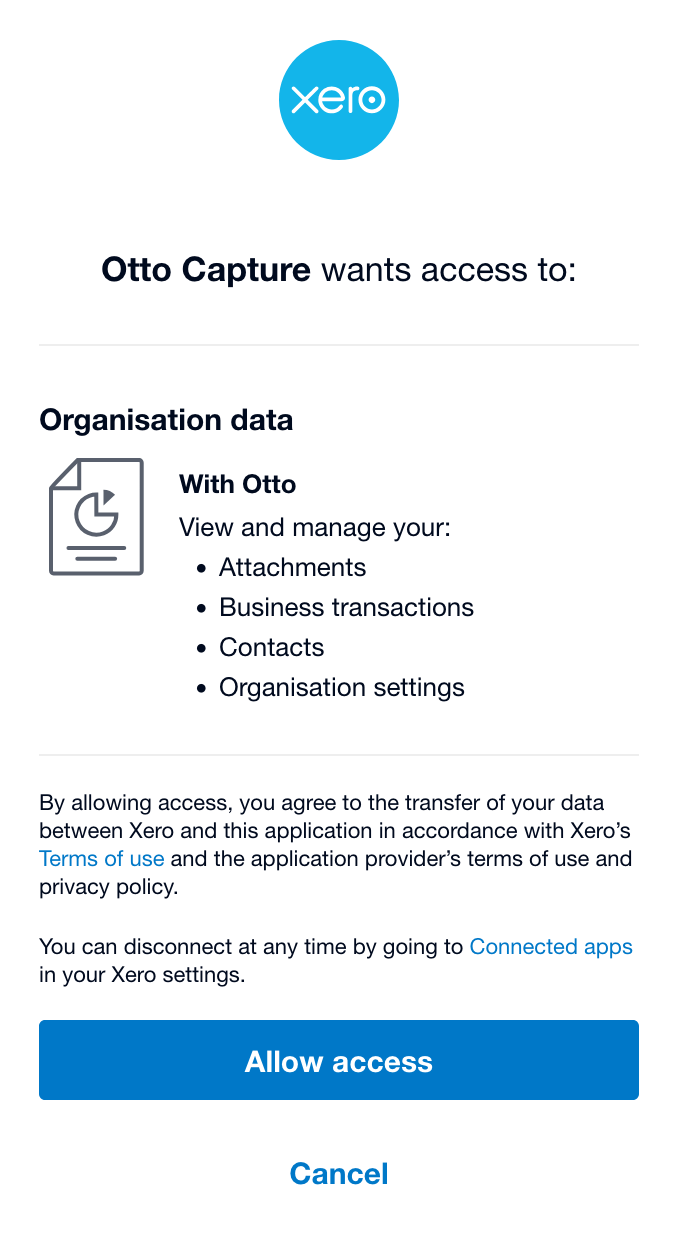
One authorisation can reach several Xero organisations, so you pick the specific organisation to connect on Xero’s consent screen.
Signing up through the Xero App Store
Section titled “Signing up through the Xero App Store”You can sign up for Otto Capture directly, or install it from the Xero App Store. If you start from the Xero App Store, Capture signs you in with your Xero login and prefills what it can. During sign-up you name your organisation and choose the email address your clients will use to send in documents.
Permissions
Section titled “Permissions”Capture requests access to:
- Contacts: To match suppliers and customers on your documents, and create new contacts that are not yet in Xero
- Accounting: To read your chart of accounts, tax rates, and currencies; to create bills, invoices, and credit notes; and to add a currency when you choose to add one during review
- Files: To attach original documents to bills, invoices, and credit notes
Capture does not request access to data outside of what’s needed for document processing.
Synced data
Section titled “Synced data”Once connected, Capture syncs the following data from Xero:
| Data | Purpose |
|---|---|
| Contacts | Match suppliers and customers to extracted document data |
| Chart of accounts | Assign account codes to line items, and recognise the client’s bank accounts in a Missing receipts import |
| Tax rates | Apply the correct tax treatment to line items |
| Currencies | Set the document currency |
| Tracking categories | Assign tracking categories to line items |
| Organisation details | Determine base currency, multi-currency support, tax registration status, and other details needed to process documents correctly |
Publishing
Section titled “Publishing”Publish states
Section titled “Publish states”When Otto publishes a bill or sales invoice to Xero, he creates it in one of three states. You choose the default for each client (see Configuring clients), and you can override it for a single document during review.
| State | Description | When to use |
|---|---|---|
| Draft | Saved as a draft | When you want to review bills in Xero before they enter the approval process |
| Awaiting approval | Waiting to be approved | When you use an approval workflow and want bills to go straight to the approval queue |
| Awaiting payment | Approved and ready to pay | When you don’t use an approval workflow and want bills ready for payment immediately |
Sales invoices use the same three states: Draft holds the invoice for review, Awaiting approval routes it through an approval step, and Awaiting payment makes it ready to send and collect on.
Credit notes
Section titled “Credit notes”Otto publishes credit notes to Xero as Xero credit notes: a purchase credit note as a credit against accounts payable, and a sales credit note as a credit against accounts receivable. They use the same three publish states as bills and invoices, and Otto attaches the original document in the same way. He records amounts as positive values, and the credit note itself carries the credit.
Currencies
Section titled “Currencies”Otto detects the document currency during extraction, and Capture syncs the currencies the connected organisation has enabled. What you can do with a foreign currency document then depends on whether that organisation can use multiple currencies at all.
Multi-currency depends on the Xero plan
Section titled “Multi-currency depends on the Xero plan”Multi-currency is not part of every Xero plan, and which plans include it changes over time. Check Xero’s pricing plans for the current position.
You don’t have to work it out from the plan name. Capture asks Xero directly whether the organisation is permitted to use multiple currencies, and the review screen offers only what that organisation can actually do.
What you’ll see during review
Section titled “What you’ll see during review”| The organisation | What Otto offers on a foreign document |
|---|---|
| Can use multiple currencies | Publish in the document currency. If that currency isn’t enabled in Xero yet, you can add it during review, or convert the amounts instead |
| Is limited to base currency | Xero keeps everything in the base currency, so the amounts need converting before the document can be published |
A currency you add during review takes effect in Xero straight away and stays available to that organisation afterwards. See Currency and conversion for how the converter works.
Why you might convert rather than add the currency
Section titled “Why you might convert rather than add the currency”Adding the currency isn’t always the answer, even where the plan allows it. Practices convert for reasons like these:
- The payment cleared in the base currency. A card or bank payment taken in sterling reaches the statement as a single sterling figure. Recording the document at the rate actually charged means it agrees with the bank line, rather than leaving an exchange difference to deal with at reconciliation
- The upgrade isn’t worth it. Multi-currency isn’t on every plan, so a client with the occasional foreign currency receipt may not justify moving to one that includes it
- The practice prefers a single-currency ledger. Foreign currency balances bring revaluation and exchange movements with them, which some practices would rather not introduce even where the plan allows it
Which approach suits a client is a decision for the practice. Otto offers both, and records what was done either way.
Attachments
Section titled “Attachments”Otto attaches the original document file to bills, sales invoices, and credit notes in Xero, up to 10 MB. For a HEIC, HEIF, WebP, or AVIF photo, he attaches the JPEG Capture made from it instead of the original.
Missing receipts
Section titled “Missing receipts”You can import the statement lines Xero hasn’t matched yet and ask the client about the payments you have no paperwork for. You export the Uncoded statement lines report from Xero as a CSV and upload it on the client’s Missing receipts tab. Capture doesn’t read bank transactions through the connection, and needs no extra access in Xero for this. See Importing from Xero.
Disconnecting and reconnecting
Section titled “Disconnecting and reconnecting”See Connecting your accounting platform for the four connection statuses. Two things are specific to Xero:
- Disconnecting works from either side. You can disconnect a client from Xero in Capture, or revoke Capture’s access from inside Xero.
- Capture mirrors a Xero-side revocation. Capture checks each client against Xero once a day, so if access is revoked inside Xero the client moves to Disconnected. If a sync or publish reaches the revoked connection before that daily check, the client shows Connection failed instead.
Either way, organisation admins get a notification with a reconnect link. To reconnect, open the client settings and click Reconnect to Xero, or use the Reconnect action in the Needs setup list on the Clients page. Capture syncs the data from Xero again, and Otto resumes publishing. Capture keeps your existing documents throughout, but disconnecting deletes the synced data and the supplier matches Otto has learned for the client (see Disconnecting and reconnecting).