

Reviewing and publishing
After Otto processes a document, it lands in your review queue. This guide covers the review interface, editing extracted data, and publishing to your accounting platform.
The review interface
Section titled “The review interface”The review screen shows the original document alongside the extracted data. You can view the document and edit any field before publishing.
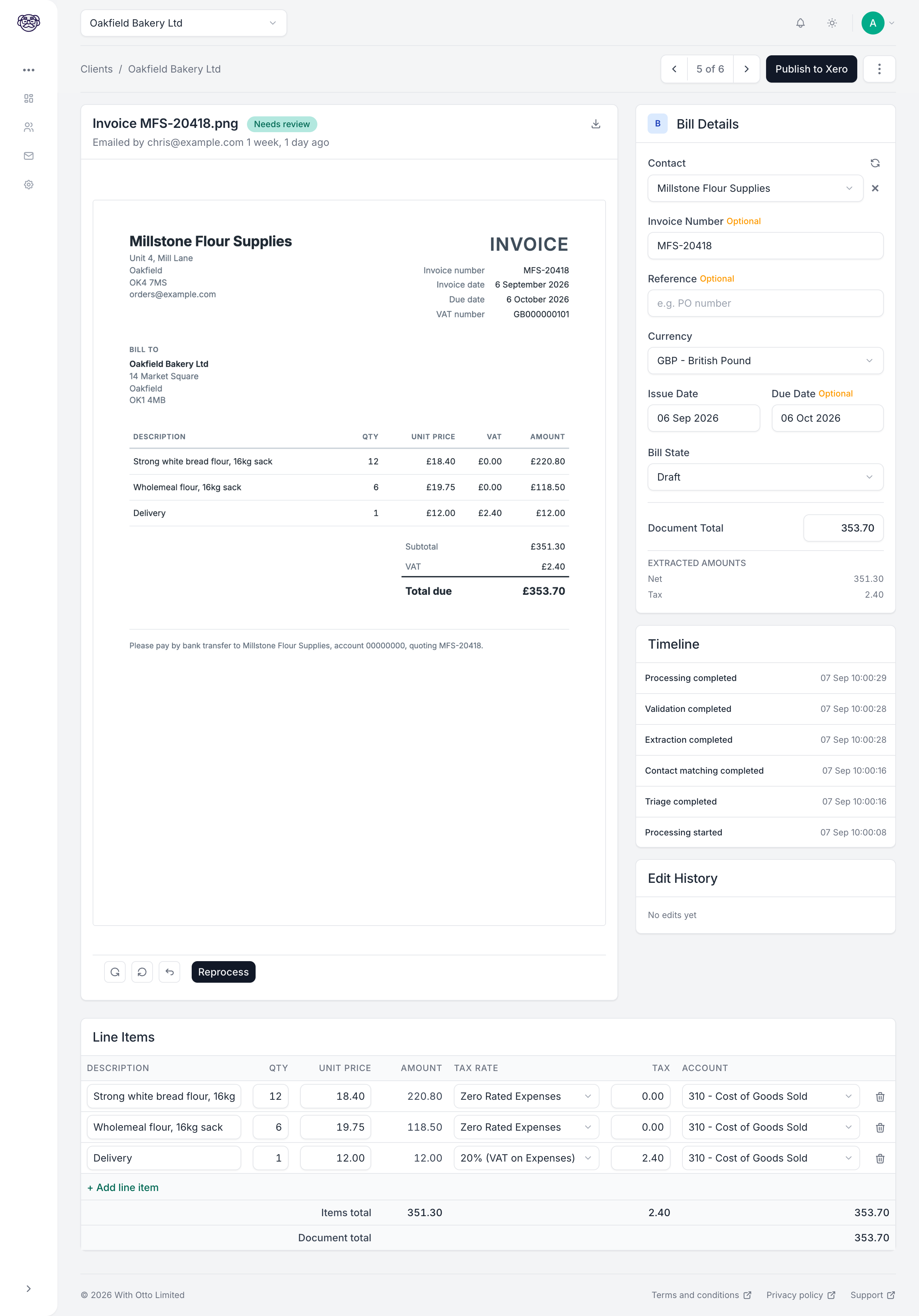
What you’ll see:
- The original document (zoomable)
- Extracted header fields (supplier, invoice number, dates, currency, amounts)
- The matched contact (with match method and confidence score)
- Line items with description, quantity, amounts, tax rate, and account code
- The publish state that will be used, where your platform supports one
- An edit history to show which fields have been changed and by whom
- An event timeline showing processing history
If the sender added a note, such as a WhatsApp caption or a note written on the client missing receipts page, it appears under the filename as Note from sender. Otto reads a WhatsApp caption when he extracts the document. He reads a note from the client missing receipts page too, if the client wrote it before he read the document. When the note was written or changed after that, the review screen says so, and if it was changed, shows what it said before. Check the coding against the current note.
Editing extracted data
Section titled “Editing extracted data”All extracted fields are editable. You can make any changes you need before publishing.
Header fields:
- Supplier name
- Invoice number
- Issue date and due date
- Currency
- Net amount, tax amount, and total amount
Line items:
- Description
- Quantity and unit amount
- Tax rate (from your client’s synced tax rates)
- Account code, or nominal code on FreeAgent (from your client’s synced accounts or categories)
- Tracking categories on Xero, or classes on QuickBooks Online
Contact:
- Select a different contact from your synced contacts
- Create a new contact if the supplier doesn’t exist yet
Publish state:
- On platforms that support settable states (Xero), override the default state for this document (see Xero publish states)
Changes are saved automatically and tracked in the edit history with before/after values. If you come back to the same document within 30 minutes, your changes are merged into the same edit rather than creating a new revision.
Currency and conversion
Section titled “Currency and conversion”Otto detects the document currency during extraction and sets it on the Currency field. Where the amounts are in a currency your client’s platform can’t record, or you’d rather post the document in the currency the bank actually charged, you can restate every amount without leaving the review screen.
When the currency isn’t available
Section titled “When the currency isn’t available”If the currency isn’t one the connected organisation can use, a warning appears under the Currency field. What it offers depends on the platform and, on Xero, on the organisation’s plan.
- The organisation can use multiple currencies, and the platform allows currencies to be added. The warning offers to add the currency, or to convert the amounts to the base currency instead. This is the case on Xero where the plan includes multi-currency, and on QuickBooks Online where multi-currency is turned on (see Xero currencies and QuickBooks Online currencies)
- The platform’s supported list is fixed. FreeAgent supports a set list that can’t be extended, so converting is the only route for a currency outside it
- The organisation is limited to its base currency. The warning names the base currency and converting is the only route
Converting the amounts
Section titled “Converting the amounts”The Convert currency button sits under the Currency field. It appears whenever the amounts are in a currency other than the client’s base currency, and it stays available after a conversion so you can run it again.
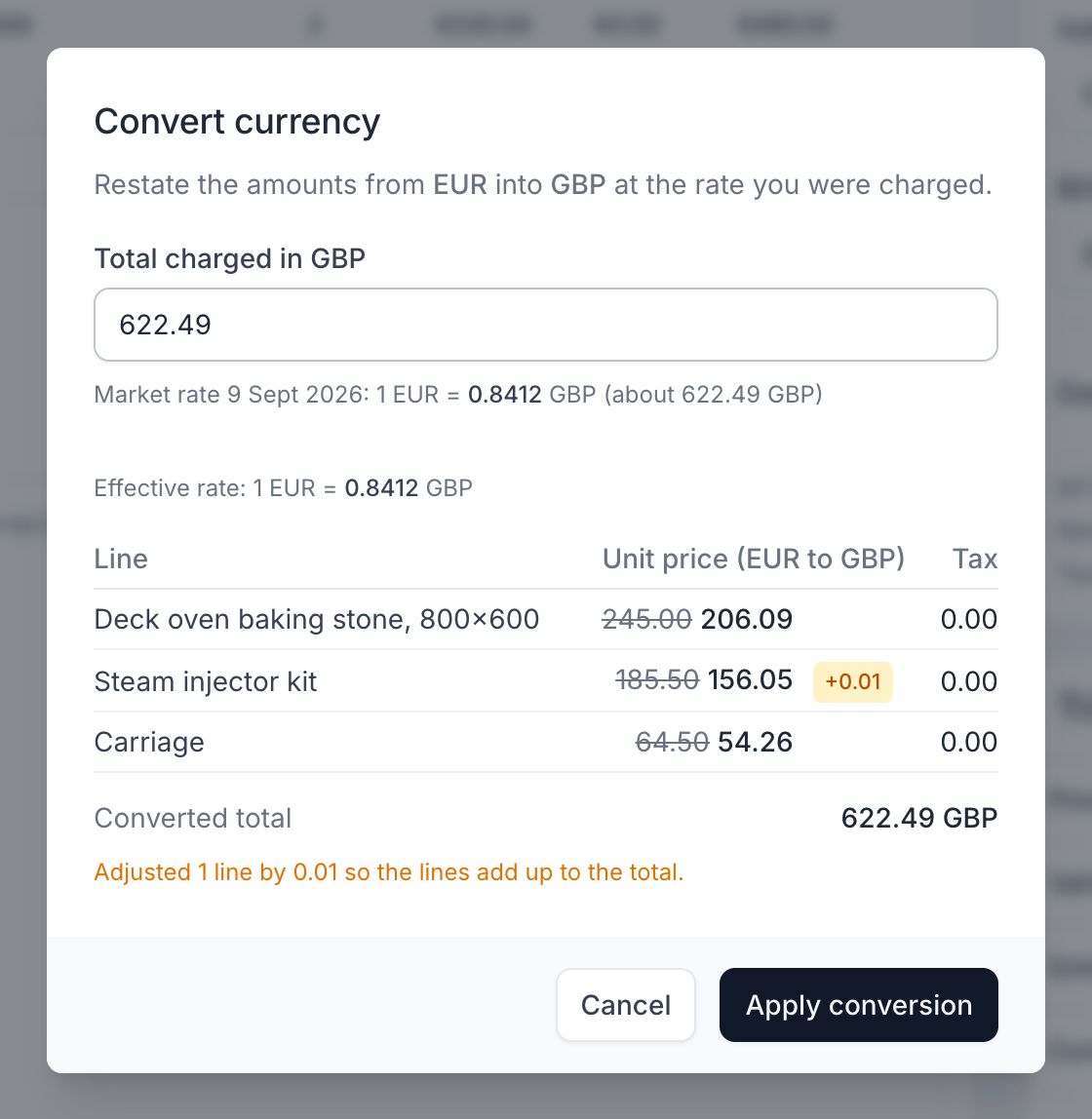
Otto doesn’t set the rate. You enter the total you were actually charged in the destination currency, taken from the bank or card statement, and Otto works backwards from it: the applied rate is whatever restates the document total as that figure. The effective rate is shown to four decimal places so you can check it against the statement.
Converting isn’t only for currencies a platform can’t record. Where a payment cleared in the client’s base currency, some practices prefer to record the document at the rate actually charged so it agrees with the bank line. The converter is available for that too.
-
Set Currency to the currency you want the document published in. It has to be one the platform supports. If the current selection can’t be used, opening the converter switches it to the client’s base currency for you
-
Click Convert currency
-
Enter the total charged in that currency
-
Check the preview. Each line shows its original unit price struck through alongside the converted one, with the converted tax on the right
-
Click Apply conversion
Cancelling leaves the document exactly as it was, including any currency the converter selected for you when it opened.
Checking the total against the market rate
Section titled “Checking the total against the market rate”A total that has been mistyped, or taken from the wrong line on the statement, still looks like a perfectly ordinary number once it is in the field. So Otto gives you something to check it against.
When the converter opens, the market rate for the document’s issue date is shown under the amount field, along with roughly what the converted total should come to at that rate. The rate is a published reference rate from central banks and other official sources, so it is the mid-market figure rather than anything your client was quoted. It is there before you type anything, and it is only a reference: the total you enter is still what sets the applied rate.
If the total you enter implies a rate well outside the usual range, applying pauses. A message replaces the market rate line saying how far out the figure is and in which direction, and the button changes to Apply anyway. Pressing it again converts as normal. Editing the amount clears the message, so the next attempt is checked against the new figure rather than waved through.
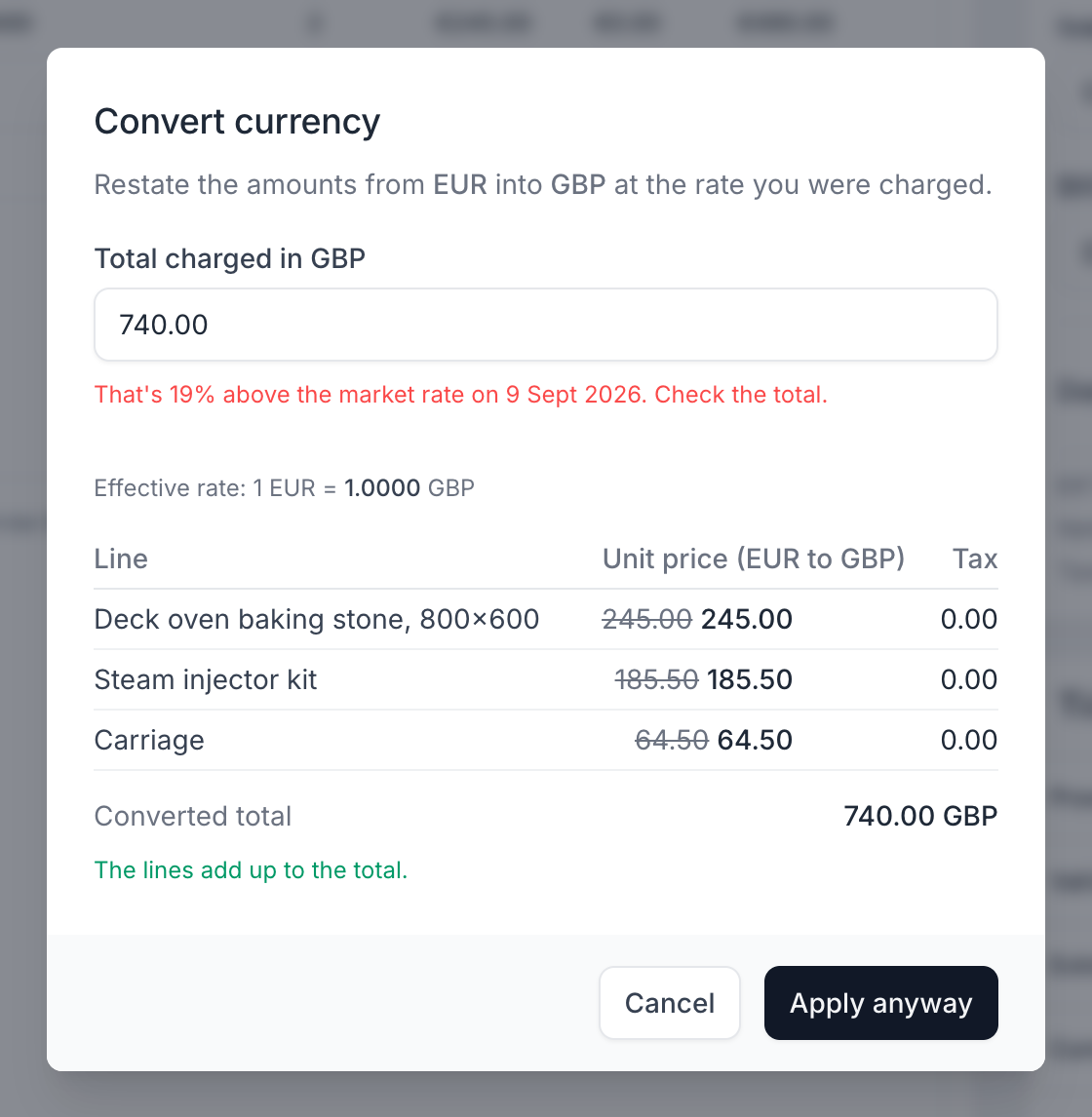
It asks rather than refuses, because a total can sit outside the range for good reasons. Card markup and fixed non-sterling fees both push the effective rate away from the market one, and a document paid well after its issue date can drift on a volatile currency pair. The range widens as the total falls, since a fixed fee or a rounding penny is a far larger share of a small receipt than a large one.
Where there is no published rate for a currency pair on that date, no market rate is shown and no check is made. The converter works exactly as it does otherwise.
How rounding is handled
Section titled “How rounding is handled”Each converted unit price is rounded to the penny, so the converted lines rarely add up exactly to the total you entered. Otto reconciles the difference rather than leaving the document out of balance.
He moves it onto line net amounts, never onto tax, and only onto a line that still adds up afterwards, with its quantity times its unit price equal to its total:
- Lines with a quantity of one or less take it first, shared by size so it lands where the proportional effect is smallest
- If there are none, it all goes on the largest line whose quantity still allows a unit price in whole pence
- If no line can take it that way, the largest line becomes quantity one at its converted total, with the count moved into its description, for example “2 x Deck oven baking stone”. The preview shows the new description before you apply
Any line that has been adjusted carries an amber marker showing the amount moved onto it, and a note under the preview says how many lines were touched and by how much.
Tax follows the line it belongs to. Where a line has a tax rate, tax is recalculated from the converted net so the rate still holds. Where the tax amount was entered by hand, left to the platform, or is zero, it’s scaled by the same rate so the figure you set is preserved in proportion.
After converting
Section titled “After converting”The Currency field keeps a short record of what happened, for example “Converted from USD at 0.7406.”, so anyone picking the document up later can see the amounts were restated and at what rate. The conversion is also written to the document’s event timeline with both currencies and the rate, and records whether the rate was applied over a warning.
Two actions stay available:
- Change conversion reopens the converter. A repeat run always starts from the original extracted amounts rather than the last conversion’s output, so correcting a mistyped total puts things right instead of compounding
- Restore original amounts puts the original figures, line items, and currency back, and the document reads as though it was never converted
Creating contacts during review
Section titled “Creating contacts during review”If the extracted supplier or customer doesn’t match any existing contact, you can create a new one directly from the review screen. The new contact is saved locally and will be created in your accounting platform when you publish the document.
Publishing
Section titled “Publishing”When you’re satisfied with the extracted data, click Publish to send the document to your accounting platform.
Before publishing, Capture validates the data:
Errors (must be fixed before publishing):
- Missing required fields (contact name, invoice number, issue date, currency, total amount)
- No contact selected
- No line items
- A line whose quantity times unit price doesn’t come to its amount
- Invalid account codes (not in your chart of accounts or categories)
- Invalid tax rates (not applicable to this document type)
- Currency not available in your accounting platform (not enabled on Xero or QuickBooks Online, or not supported by FreeAgent)
Warnings (can be acknowledged and published anyway):
- Missing due date
- Line item amounts don’t match header totals
What gets created
Section titled “What gets created”When you publish a document, Capture creates the following in your accounting platform:
- A bill or invoice: With all the header fields, line items, and tax information
- A contact: If you created a new contact during review, it’s created first
- An attachment: The original document file is attached to bills on every platform. On FreeAgent, sales invoices have no attachment field, so only Xero invoices keep the source file (see Xero, FreeAgent, and QuickBooks Online)
On Xero, the bill or invoice is created in the state you selected. FreeAgent and QuickBooks Online have no settable state (see publishing to FreeAgent and QuickBooks Online).
Handling publish errors
Section titled “Handling publish errors”If publishing fails, the document is marked as Publish failed and an error message explains what went wrong. Common causes:
- Invalid account code: An account code was removed or deactivated in your accounting platform since the data was synced. Refresh the synced data and update the line item.
- Invalid tax rate: A tax rate is no longer valid. Refresh the synced data and select a different rate.
- Authentication error: The connection to your accounting platform has been lost, usually because access was revoked. Reconnect and retry.
- Rate limited: Too many requests in a short time. Wait a moment and retry.
After fixing the issue, you can retry publishing from the review screen.
Discarding documents
Section titled “Discarding documents”If a document shouldn’t be published (duplicate, irrelevant, or too poor quality), you can discard it. Discarded documents are kept in Capture and can be restored at any time.
On the Needs attention and Ready tabs, you can discard in bulk: select the documents with their checkboxes, click Discard selected, then confirm. This clears a batch of duplicates or test uploads in one go.