

Importing from Xero
Missing receipts in Otto Capture starts from Xero’s Uncoded statement lines report, which lists the statement lines that haven’t been reconciled yet. You export it as a CSV and upload it on the client’s Missing receipts tab. Capture doesn’t read bank transactions through the Xero connection, and needs no extra access in Xero for this.
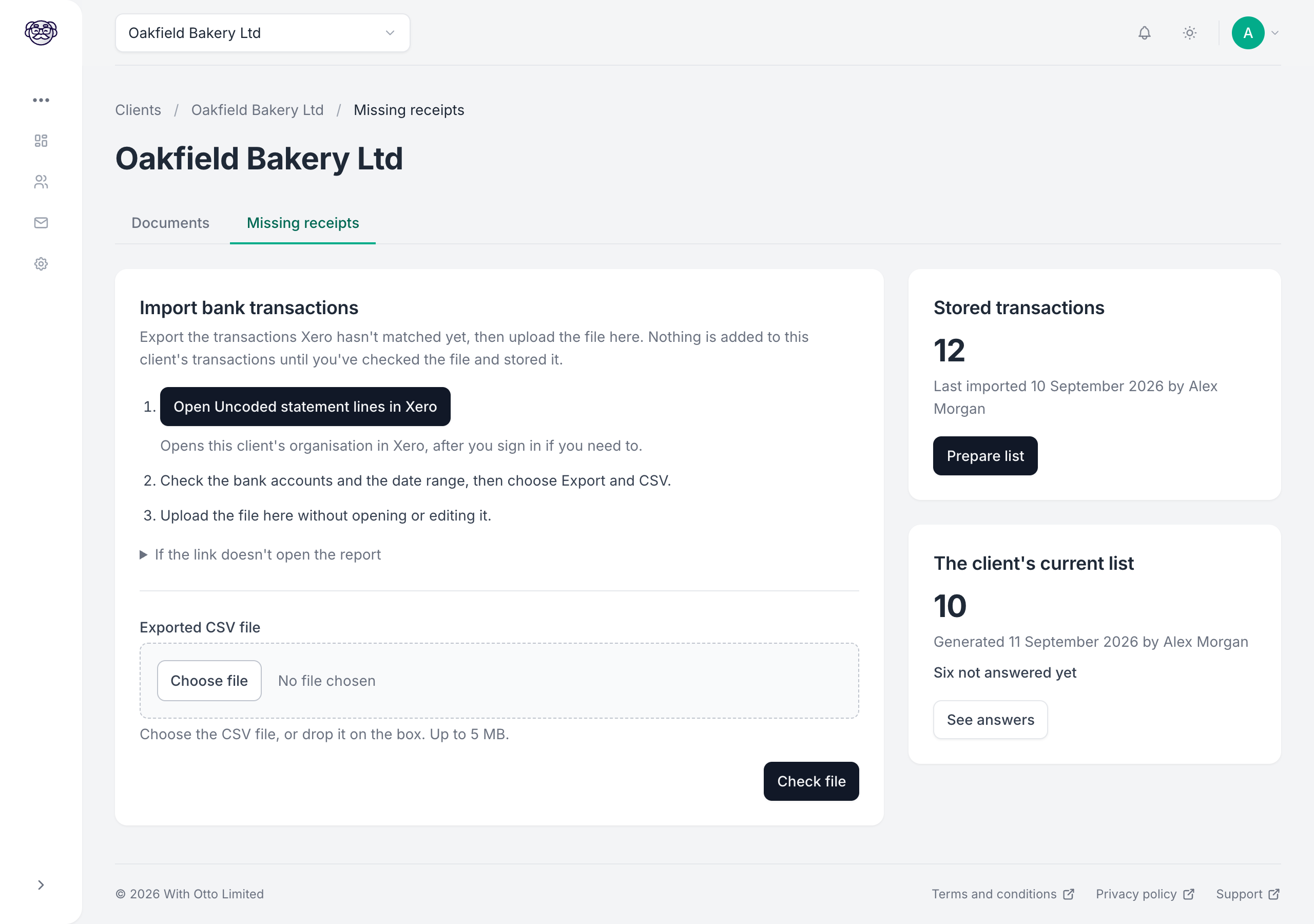
Exporting from Xero
Section titled “Exporting from Xero”-
On the client’s Missing receipts tab, click Open Uncoded statement lines in Xero. It opens the report for this client’s organisation in a new tab, after you sign in to Xero if you need to, with every bank account and the last six months selected.
If the link doesn’t open the report, go to Accounting, then Bank accounts in Xero, open the ⋮ menu at the top of the page, and choose Uncoded statement lines. Opened that way, the report keeps whatever filters were last used on it, so it may not cover every account.
-
Check that the bank accounts and the date range cover the payments you’re chasing.
-
Choose Export, then CSV.
-
Back in Capture, choose the file or drop it on the box, and click Check file. Upload it without opening or editing it first: a spreadsheet program can change the dates and amounts when it saves.
If you can’t see Uncoded statement lines in Xero, check your access to that organisation in Xero.
Checking the import
Section titled “Checking the import”Capture checks the file before anything is stored, and shows you what it found on the Check this import screen:
- Newest transaction: with how many days ago it was, so an old export picked up from a downloads folder stands out
- Date range and Transactions to import
- Bank accounts in this file: each account in the file, marked Recognised when it matches one of the client’s bank accounts in Xero, or Not imported when it doesn’t
- Newest transactions in this file: a sample, so you can see it’s the client you meant
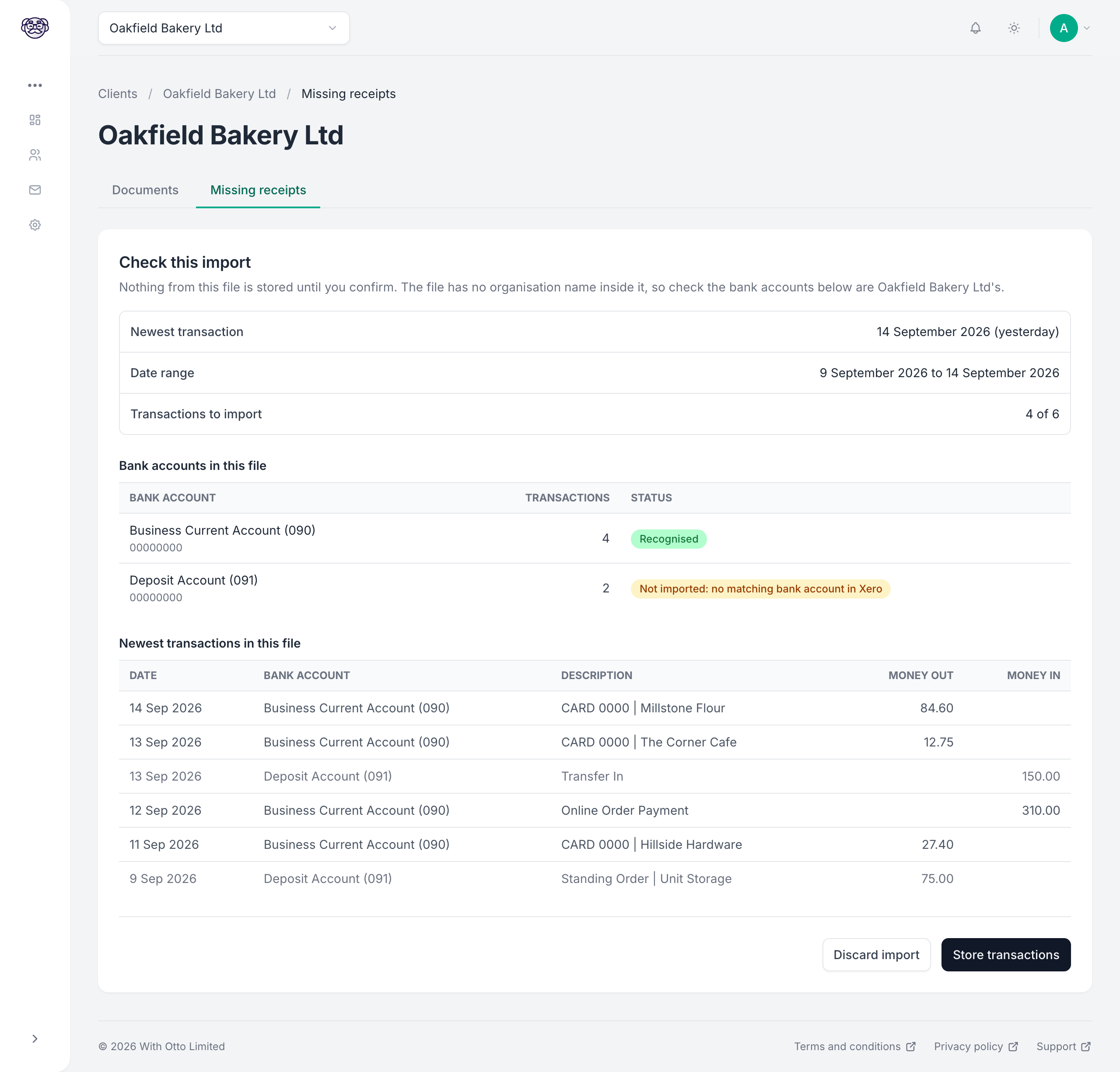
Nothing inside the file names the organisation it came from, so the bank accounts are how you tell it’s the right client’s file. Capture refreshes the client’s bank accounts from Xero before it checks, and a section for an account it can’t match exactly isn’t imported. A file exported from Xero’s bulk export, across several organisations, carries the organisation’s name in its filename, and Capture shows Check the organisation if that name isn’t this client’s.
Click Store transactions to keep them, or Discard import to throw the file away. Nothing is added to the client’s transactions until you store them. Then prepare the client’s list.
Importing again
Section titled “Importing again”Import a fresh export whenever you want to bring the list up to date. Each import replaces the transactions you prepare the list from, and answers and exclusions carry over: see Importing again.
Capture refuses a file it can’t read with confidence, rather than guessing, and tells you which line is at fault where one line is. Export it again from Xero and upload it without opening it.