

Client missing receipts page
The client missing receipts page is where a client answers the questions their accountant or bookkeeper has about their bank payments. It lists the payments on the client’s current list, and the client answers each one by sending a receipt or invoice, writing a short note, or both. There’s nothing to download and no Otto Capture account to create.
This guide is written for the practice. For importing transactions and choosing what the client is asked about, see Missing receipts.
Sharing the link
Section titled “Sharing the link”Each client has its own link, created when an admin turns the page on in the client’s settings (see Turning it on for a client). Anyone in your organisation can copy it:
- On the client’s Missing receipts tab, click See answers. The client’s link is at the top, with Copy link.
- In the client’s settings, under Client Submission, the Client missing receipts page area shows the link alongside the admin controls.
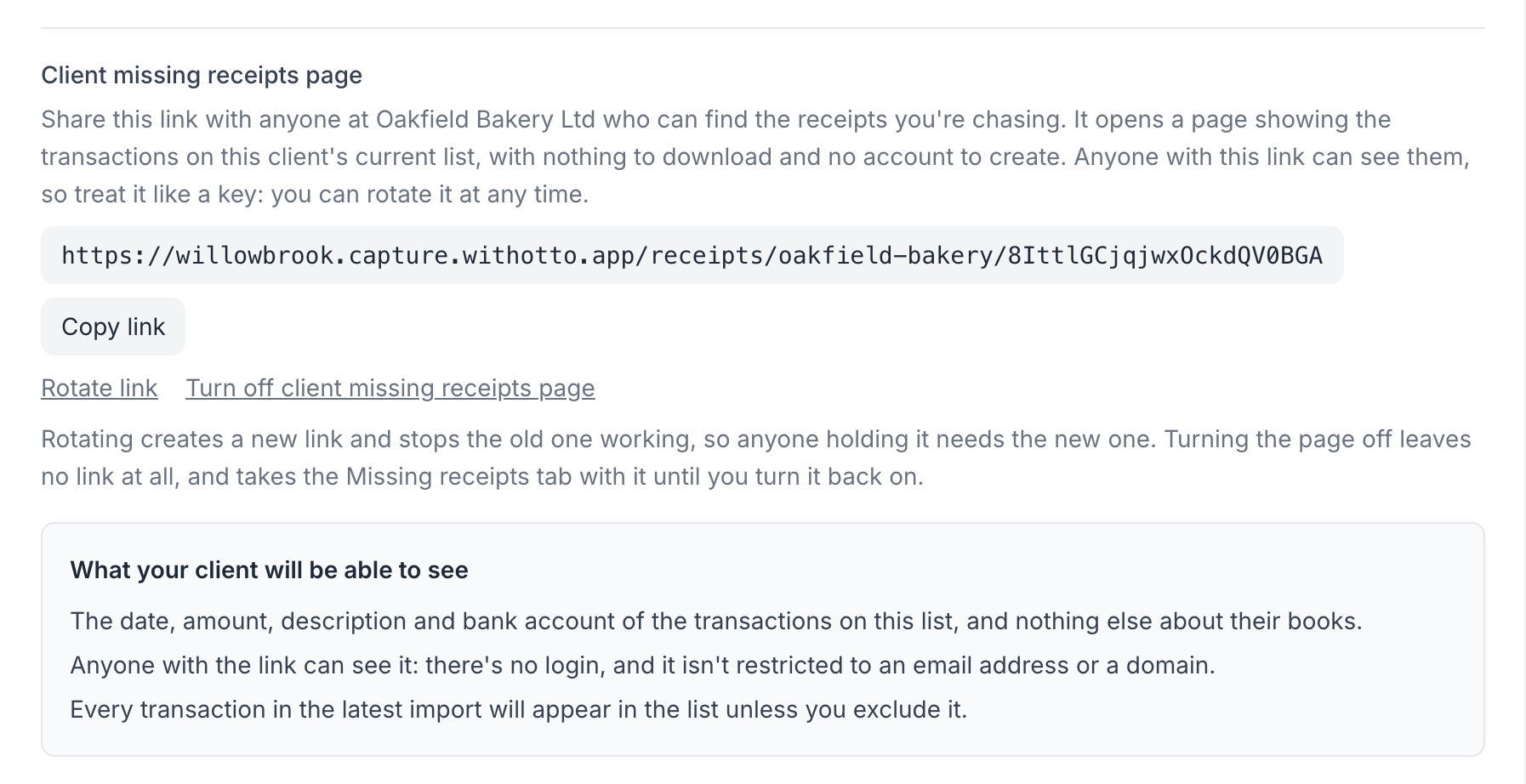
Share it with whoever at the client can find the receipts: a direct message or an email to a named person is easier to keep track of than a link posted somewhere several people can see. Capture doesn’t send the link or tell the client when their list changes, so you let them know.
The same link works every time. When you update the client’s list, the page shows the new list the next time it’s opened.
What the client sees
Section titled “What the client sees”The page is headed Payments [your organisation] has questions about, so the client can see who is asking. Your organisation leads the page header, and With Otto appears only as a small attribution beside it.
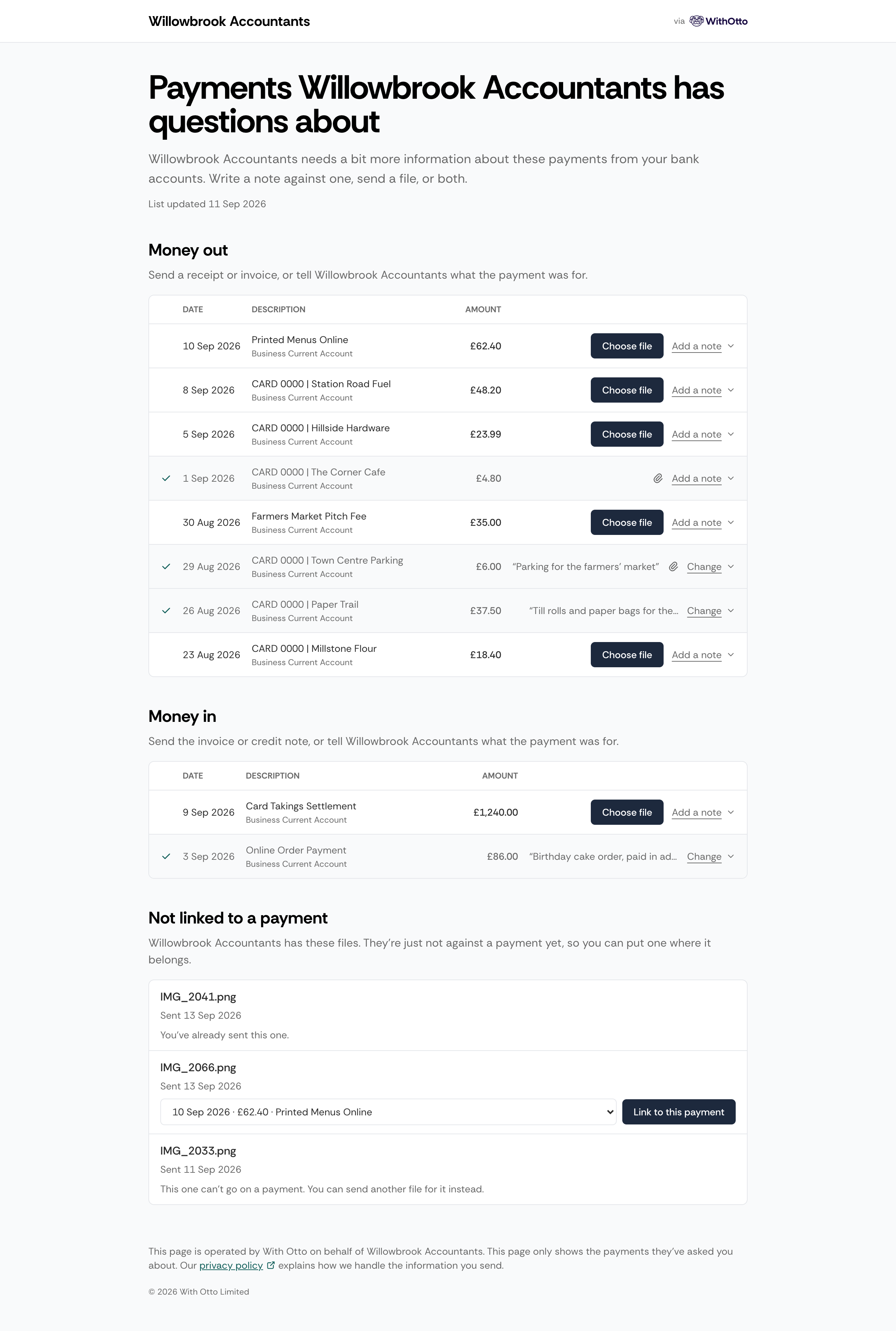
The payments are split into Money out and Money in, newest first, each showing its date, bank account, description, and amount. The descriptions appear exactly as they do on the bank statement, so the client can match them against their own records. A List updated date tells them when you last changed the list.
The page shows nothing else about the client’s books: no document statuses, nothing about imports or excluded transactions, and not the client’s own name.
When every payment is answered, the page tells the client you have everything you need for now, and to keep the link for next time.
How a client answers a payment
Section titled “How a client answers a payment”For each payment, the client can send a file, write a note, or both.
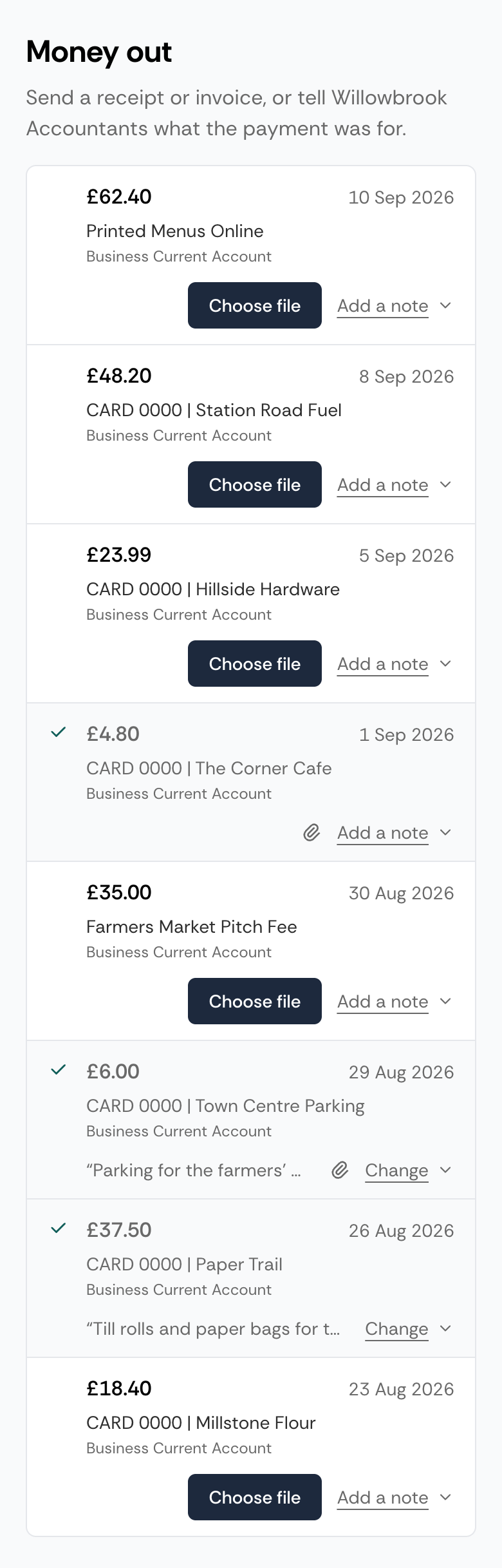
- Send a file: Choose file opens their photo library or files, and the file sends as soon as they pick it. On a computer, they can also drop a file straight onto the payment. Each payment takes one file: a client who sent the wrong one removes it and chooses again.
- Write a note: Add a note opens a short box asking what the payment was for, or, once a file is on the payment, anything else you should know about it. Save keeps it. Once there’s a note, the control reads Change, and clearing the box and saving removes the note.
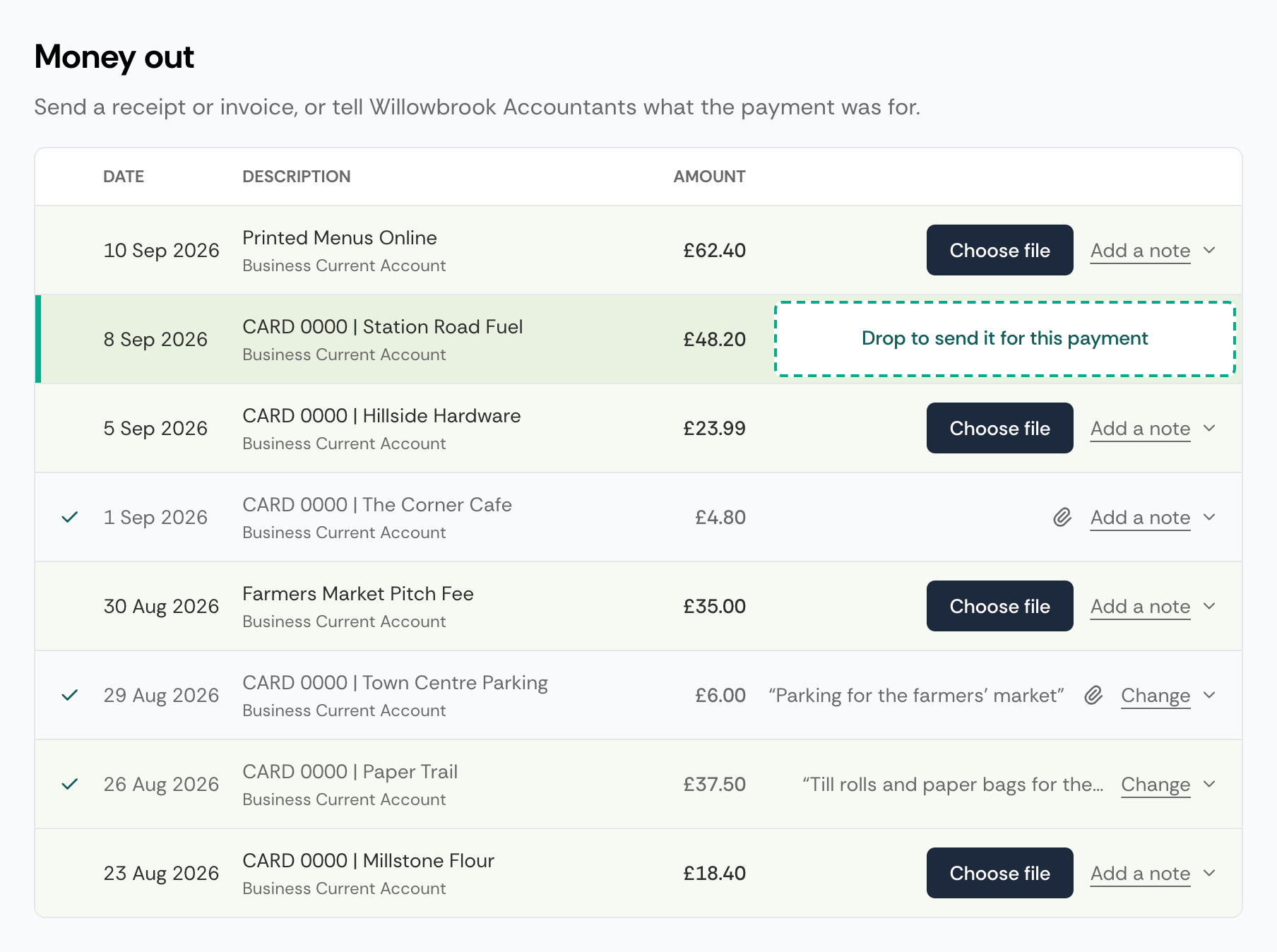
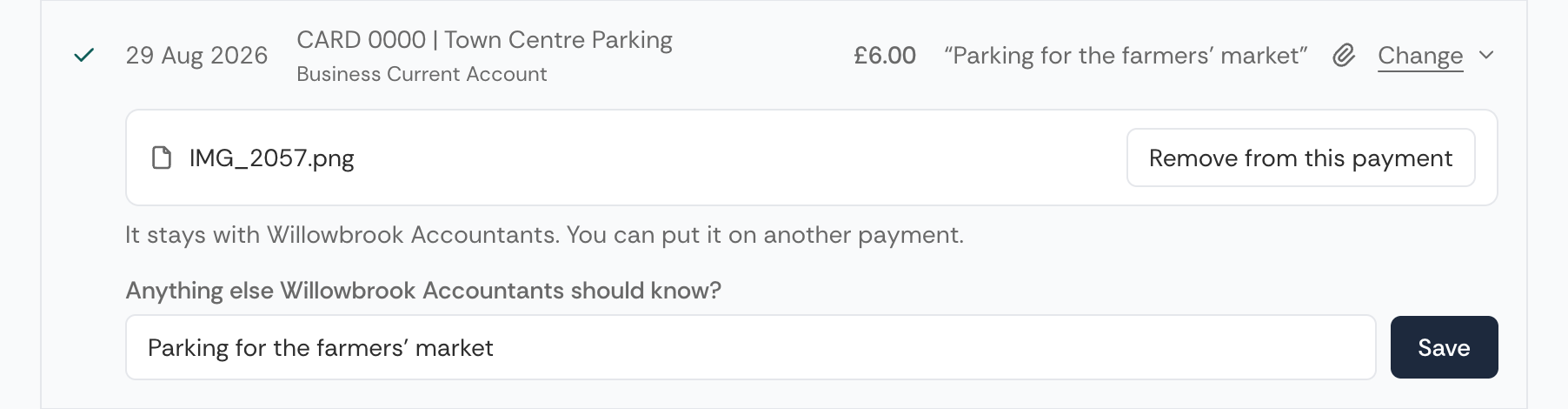
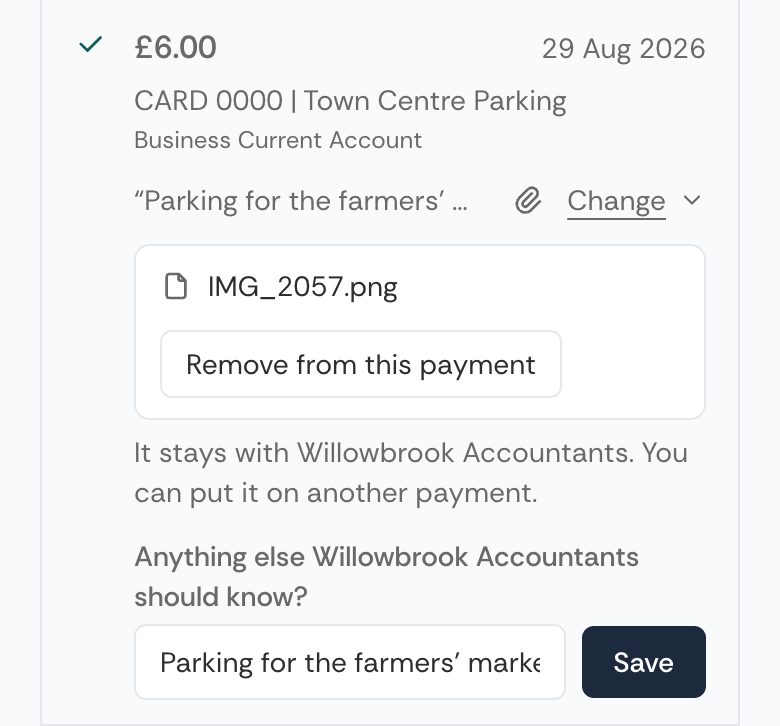
An answered payment stays where it is in the list, dimmed, with a tick beside it, so nothing moves under the client’s finger while they work down the page.
For money going out, the page asks for a receipt or invoice. For money coming in, it asks for the invoice or credit note the payment relates to. Either way, a note on its own is a complete answer for a payment the client has no document for.
The page accepts the same file types and size limit as the client submission page, and each file goes through the same processing pipeline as any other document. The document’s source shows as Client missing receipts page, and the client’s note appears with it on the review screen.
Files not linked to a payment
Section titled “Files not linked to a payment”A file can end up on no payment the client is being asked about: because the client removed it from a payment, because you used Ask again on its payment, or because you took its payment off the list. Those files appear under Not linked to a payment at the bottom of the page, where the client can use Link to this payment to put one on a payment that still needs a file.
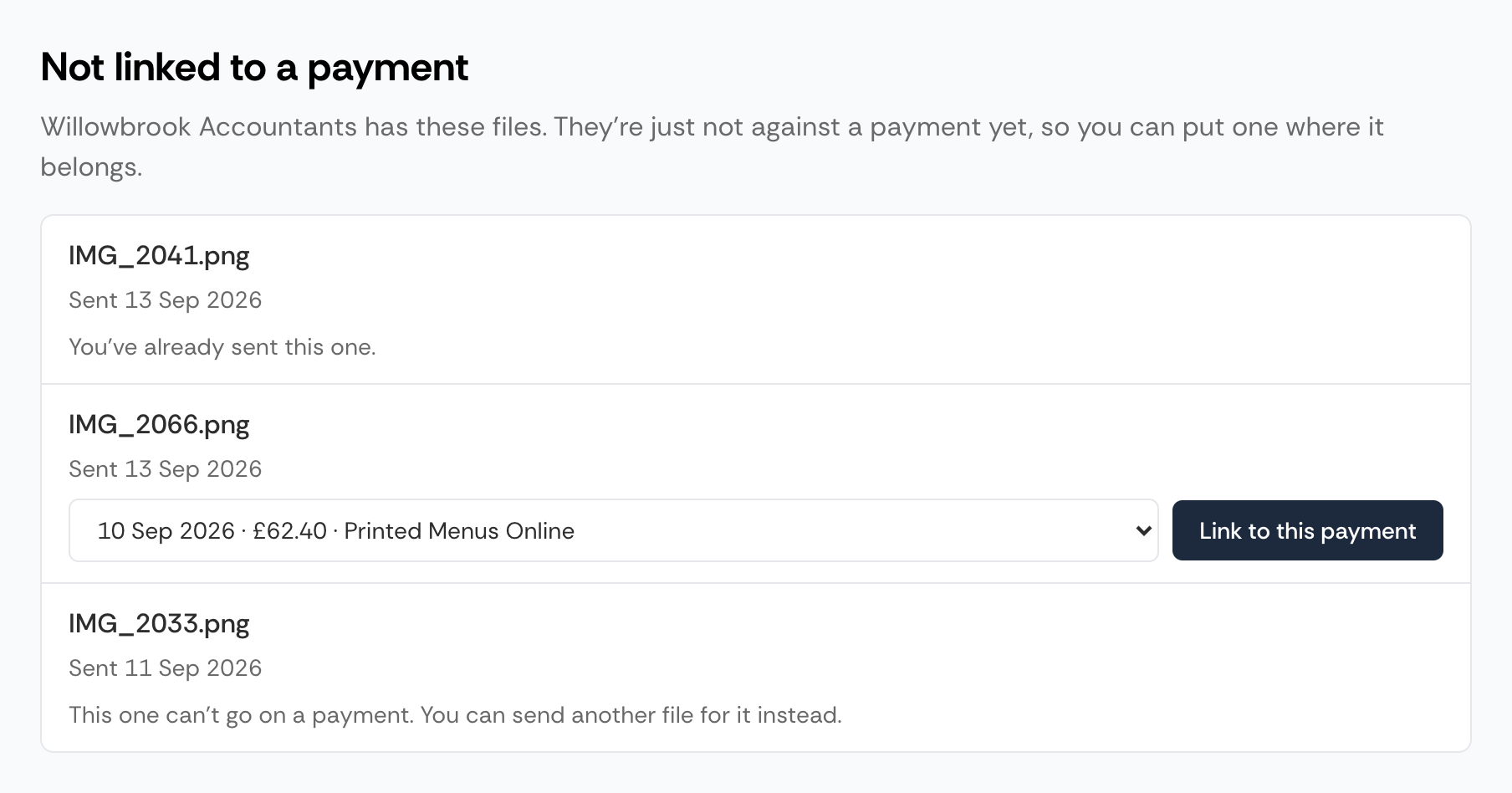
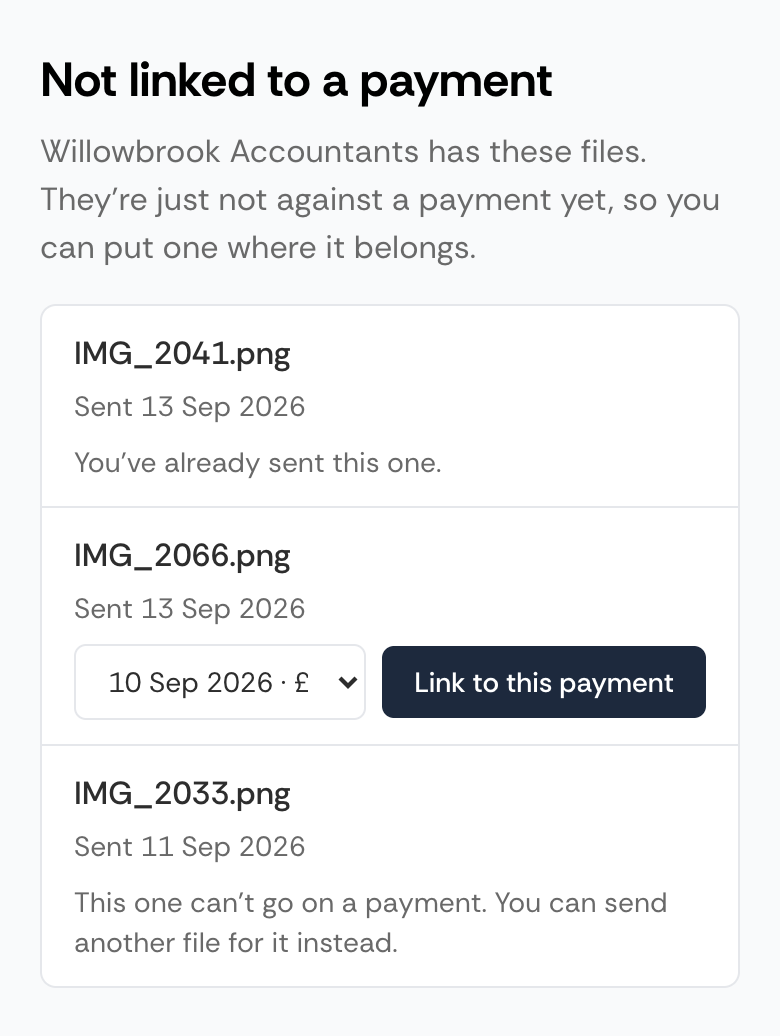
Removing a file from a payment doesn’t take it back. The page tells the client the file stays with you, and it does: it stays in Capture, carries on through processing, and counts towards billing like any other document if you publish it.
A file you’ve discarded, or one Capture detected as a duplicate, can’t go on a payment. It stays under Not linked to a payment for 30 days with a line saying so, and the payment it was on shows as unanswered again so the client can send another file.
What anyone with the link can see
Section titled “What anyone with the link can see”Anyone holding the link can see the date, amount, description, and bank account of every transaction on the client’s current list, and can answer them. There’s no login, and the link isn’t restricted to an email address or a domain.
That makes this link more sensitive than a submission link, which only lets someone send documents in. Bank descriptions routinely name people, suppliers, and salaries, so treat the link like a key, and use the list to keep off anything the client doesn’t need to be asked about.
Search engines are told not to index the page, and the link isn’t passed on to any other site the client might visit next.
Rotating and turning the page off
Section titled “Rotating and turning the page off”Both actions are in the client’s settings under Client Submission, both are admin-only, and both ask you to confirm.
- Rotate link creates a new link straight away and stops the old one working. The page stays on and the client’s list is unchanged, so anyone who should still be answering needs the new link.
- Turn off client missing receipts page leaves the client with no link at all. The Missing receipts tab goes too, so nobody can import or prepare a list for that client until an admin turns the page back on. The stored transactions and the client’s list are kept.
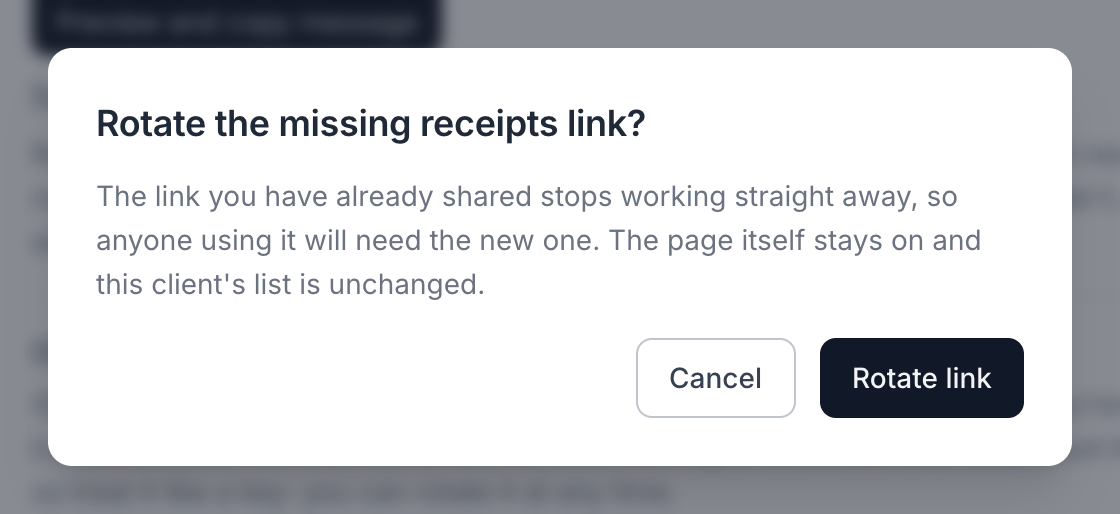
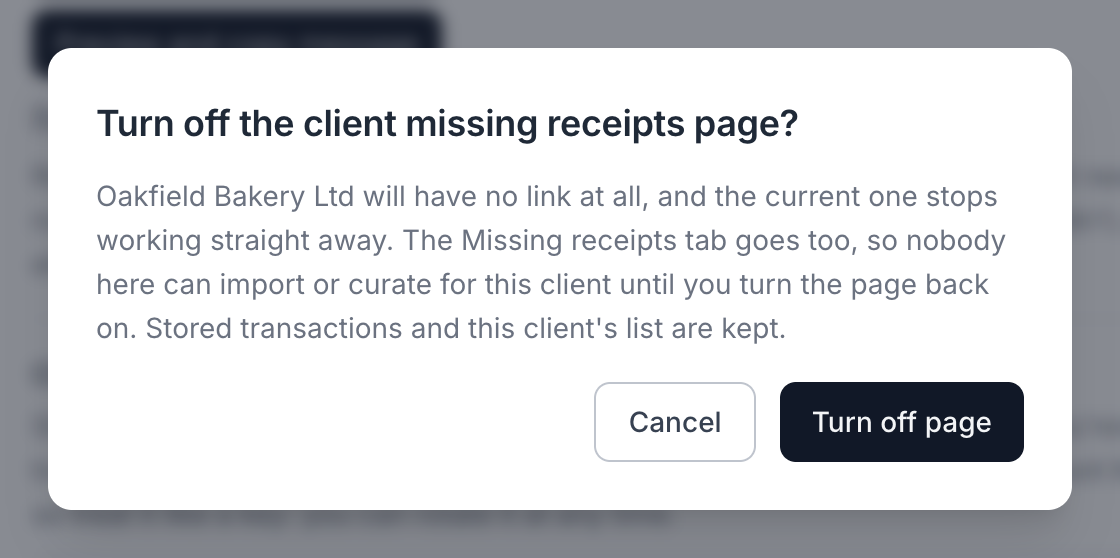
Turning the page back on creates a fresh link. A link you’ve rotated away or turned off stays dead, so an old one can never come back.
What breaks a link, and what doesn’t
Section titled “What breaks a link, and what doesn’t”| Change | Effect on the link |
|---|---|
| Changing the client’s name or prefix | Keeps working. The address updates itself when the page is next opened |
| Changing your organisation prefix | Breaks every client’s link. Share the new ones |
| Disconnecting the client’s accounting platform | Stops working. The same link works again once the client is reconnected and set up again |
| Rotating the link | Breaks the old one immediately |
| Turning the page off | Breaks the old one immediately |
Someone opening a link that no longer works sees the same message as for a dead submission page link, and isn’t told why.
Spam protection
Section titled “Spam protection”The page shares the client submission page’s protection against misuse. If someone sends an unusual number of files or answers in a short time, the page asks them to try again later. The limits are set well above what a client would do in normal use. If a client tells you they’re hitting the limit, please contact support.