

Reconciliation report
Each day Otto reconciles a client, he writes a report of what he did. Open one by selecting its date, or the eye icon beside it, on the dashboard or a client’s page.
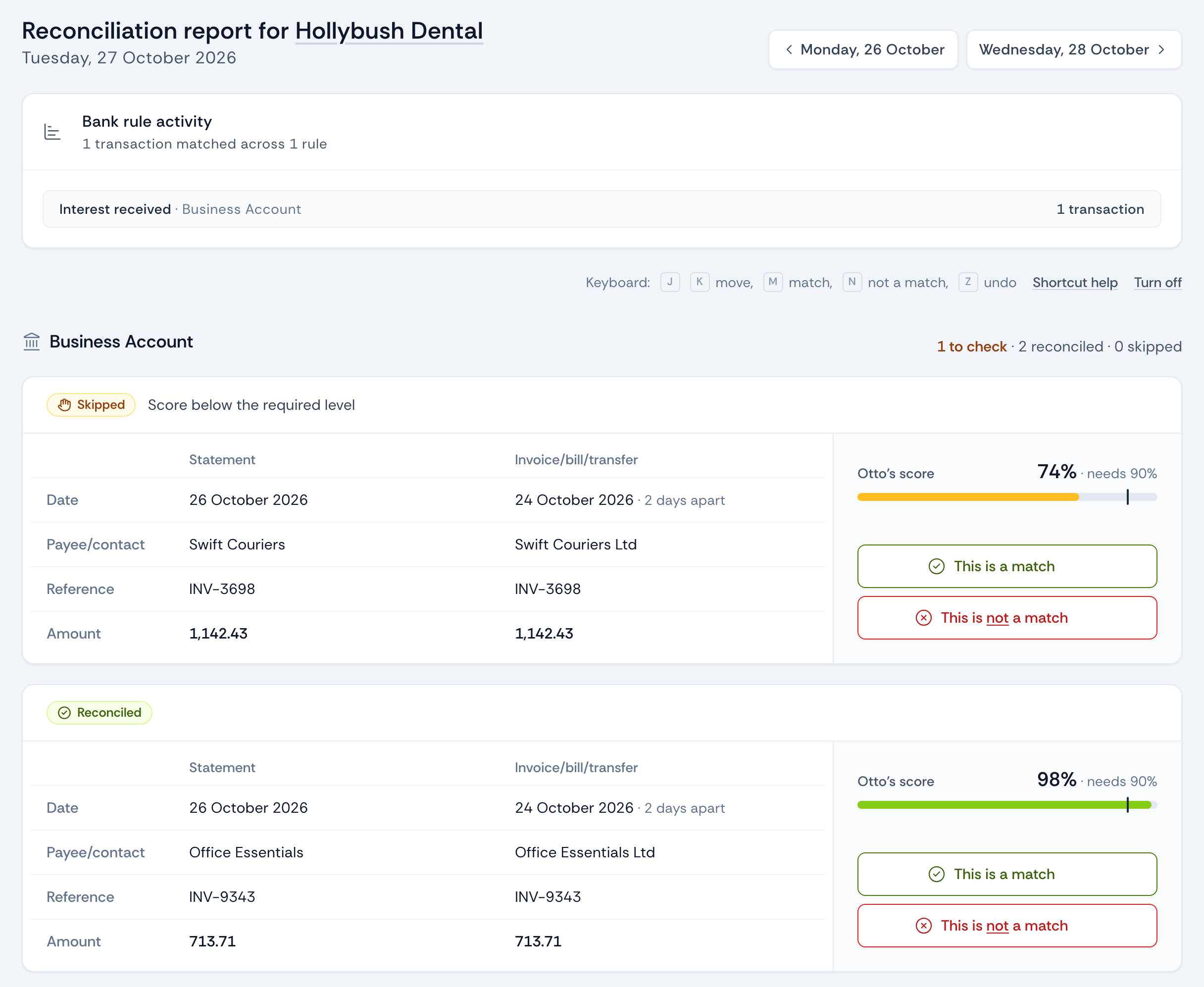
What the report shows
Section titled “What the report shows”- The heading shows the client and the day. The buttons beside it open the client’s previous and next reports.
- Bank rule activity lists the bank rules Otto reconciled that day, with the number of transactions for each.
- Each bank account follows, with a count of its lines: how many are left for you to check, how many Otto reconciled, how many he recorded in monitoring mode, and how many he skipped. Once you’ve answered every line left for you, the count reads “All checked”.
- Cards show the lines you can answer, with the ones Otto left for you first. Each card has Otto’s decision at the top, then the bank statement transaction and the possible match from Xero side by side, Otto’s score, why he did what he did, and the feedback buttons.
- Single rows at the end of each account hold the lines there’s nothing to answer on, such as a transaction whose possible match is dated after it. Select a row to see its details.
How does Otto decide what to reconcile? explains each decision a card can show.
Answering a card
Section titled “Answering a card”Choose “This is a match” or “This is not a match”. What Otto does next depends on what he did and what you chose: the feedback guide covers each case.
Your answer saves five seconds after you choose it, so there’s time to change your mind: select “Undo” before it saves. If you leave the page sooner, it saves straight away. Once it’s saved, the card shows your answer where the buttons were, and the bank account’s count goes down.
Where Xero offered several possible matches for a line, a list under the card shows each one with its own buttons. This list reaches every practice in December 2026: see when Xero offers several possible matches.
View only users see the report and any answers, but not the buttons. See user management for what each role can do.
Keyboard shortcuts
Section titled “Keyboard shortcuts”You can answer cards without the mouse. The keys act on the card outlined on the page.
| Key | What it does |
|---|---|
J |
Next line, or next possible match |
K |
Previous line, or previous possible match |
M |
This is a match |
N |
This is not a match |
Z |
Undo the last answer, before it saves |
Esc |
Clear the outline |
? |
Show the list of shortcuts |
Select “Shortcut help” above the first bank account to see the list. To turn the shortcuts off, select “Turn off” beside it, or “Turn off shortcuts” in the list. Your choice is kept in this browser.