

Missing receipts
Missing receipts in Otto Capture puts the payments you have questions about on one page, where the client answers each one with a receipt, a note, or both. A note stays with the receipt it relates to, so it’s there when you review the document. You import the transactions Xero shows as unreconciled, choose which ones to ask about, and share the link.
It’s available for clients connected to Xero. Capture doesn’t import bank transactions for FreeAgent or QuickBooks Online clients.
How it works
Section titled “How it works”-
An admin turns on the client’s missing receipts page, which adds a Missing receipts tab to that client.
-
You export the client’s uncoded statement lines from Xero and import the file into Capture.
-
You prepare the client’s list: exclude anything the client doesn’t need to explain, and create the list from the rest.
-
You share the client’s link. The client opens it, sends a file or writes a note against each payment, and you see their answers as they arrive.
Files the client sends go through the same processing pipeline as any other document, and appear in the client’s review queue alongside everything else.
Turning it on for a client
Section titled “Turning it on for a client”Open the client’s settings and go to Client Submission. In the Client missing receipts page area, click Turn on client missing receipts page. Only admins can do this.
Turning the page on creates the client’s link and adds the Missing receipts tab next to Documents on the client’s page. The two go together: while the page is off, there’s no tab, and nobody can import or prepare a list for that client. See Client missing receipts page for the link itself, and for rotating it or turning the page off.
Importing bank transactions
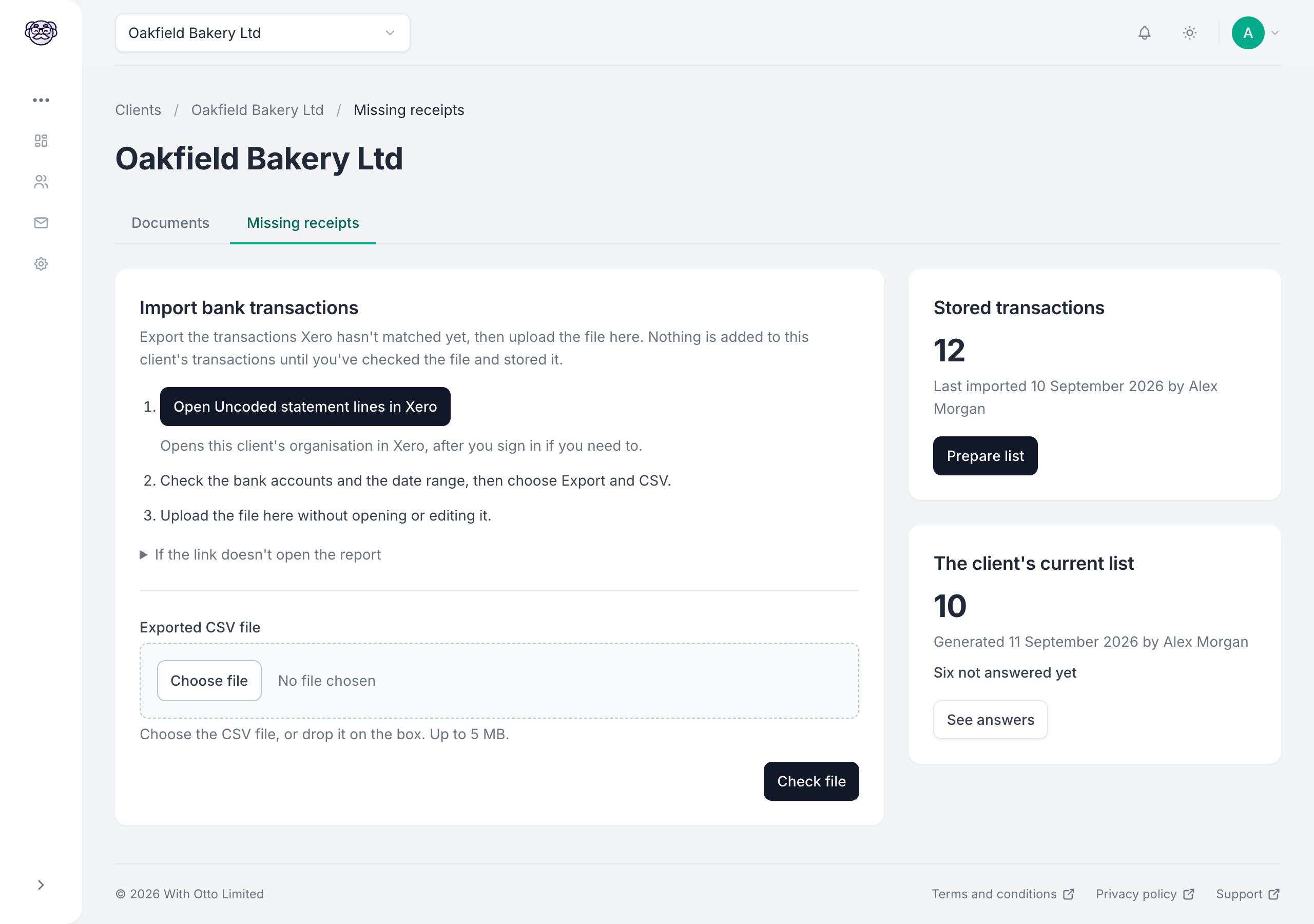
Section titled “Importing bank transactions”Capture doesn’t read bank transactions from Xero directly. You export them from Xero’s Uncoded statement lines report, which lists the statement lines that haven’t been reconciled yet, and upload the file on the Missing receipts tab.
-
On the client’s Missing receipts tab, click Open Uncoded statement lines in Xero. It opens the report for this client’s organisation in a new tab, after you sign in to Xero if you need to.
If the link doesn’t open the report, go to Accounting, then Bank accounts in Xero, open the ⋮ menu at the top of the page, and choose Uncoded statement lines.
-
Check the bank accounts and the date range. Xero reapplies whatever filters were last used on the report, so they may not cover every account.
-
Choose Export, then CSV.
-
Back in Capture, choose the file or drop it on the box, and click Check file. Upload it without opening or editing it first: a spreadsheet program can change the dates and amounts when it saves.
If you can’t see Uncoded statement lines in Xero, check your access to that organisation in Xero.
Checking the import
Section titled “Checking the import”Capture checks the file before anything is stored, and shows you what it found on the Check this import screen:
- Newest transaction: with how many days ago it was, so an old export picked up from a downloads folder stands out
- Date range and Transactions to import
- Bank accounts in this file: each account in the file, marked Recognised when it matches one of the client’s bank accounts in Xero, or Not imported when it doesn’t
- Newest transactions in this file: a sample, so you can see it’s the client you meant
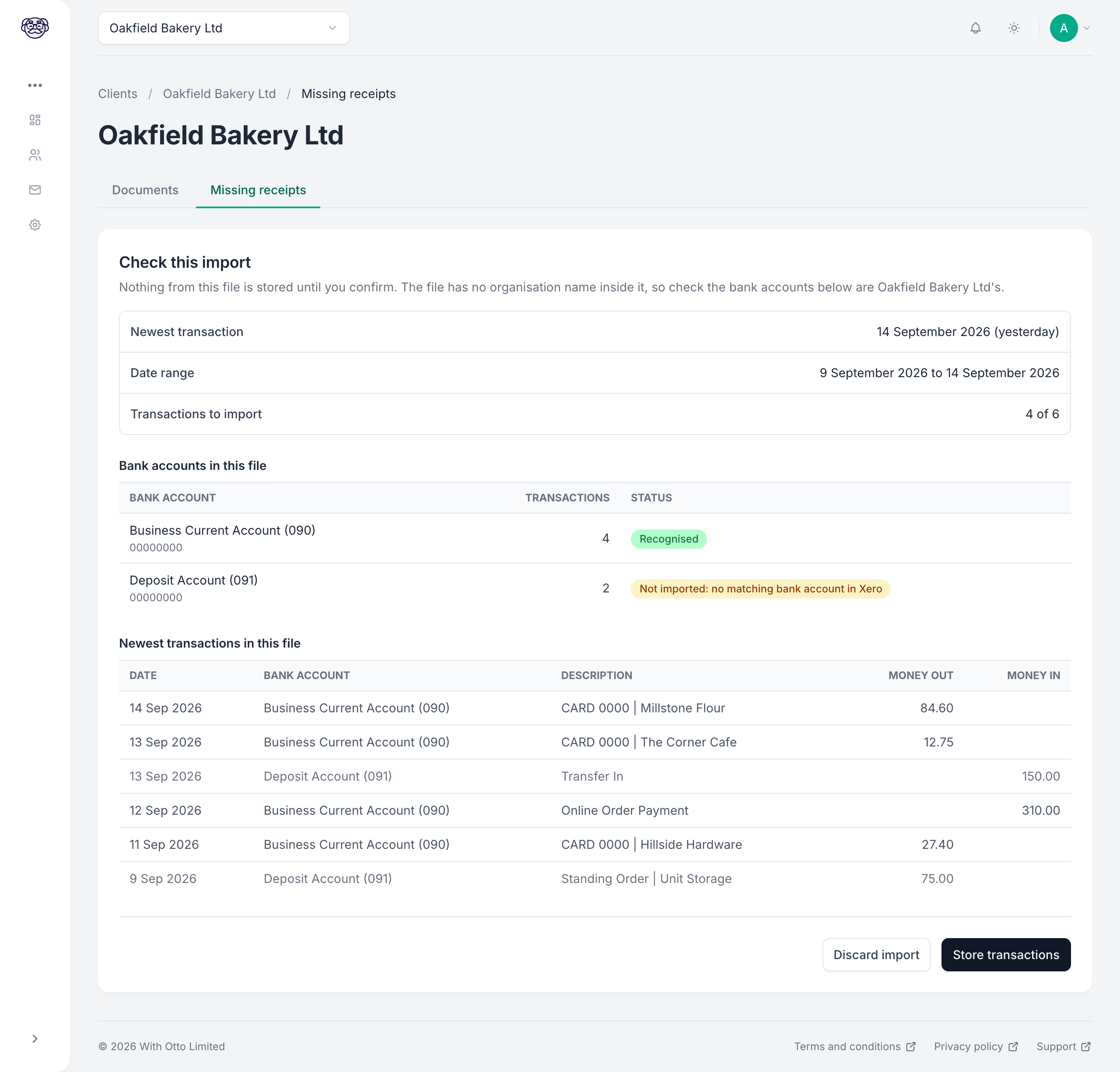
The file doesn’t name the organisation it came from, so the bank accounts are how you tell it’s the right client’s. Capture refreshes the client’s bank accounts from Xero before it checks, and a section for an account it can’t match exactly isn’t imported. A file exported from Xero’s bulk export, across several organisations, carries the organisation’s name in its filename, and Capture shows Check the organisation if that name isn’t this client’s.
Click Store transactions to keep them, or Discard import to throw the file away. Nothing is added to the client’s transactions until you store them.
Importing again
Section titled “Importing again”Import a fresh export whenever you want to bring the list up to date. Capture recognises transactions it already holds, so importing an overlapping date range doesn’t create duplicates. Anything you’ve excluded stays excluded, and anything the client has already answered keeps its answer.
When you next prepare the list, only the transactions in your newest import are candidates. A transaction that has dropped out of the export since the last import has usually been reconciled in Xero, so the client isn’t asked about it again.
Capture refuses a file it can’t read with confidence, rather than guessing, and tells you which line is at fault where one line is. Export it again from Xero and upload it without opening it.
Preparing the client’s list
Section titled “Preparing the client’s list”Click Prepare list to choose what the client is asked about. Every transaction in the newest import is included unless you exclude it, so the job here is taking out what the client doesn’t need to explain, such as salaries, transfers between their own accounts, or payments you already have paperwork for.
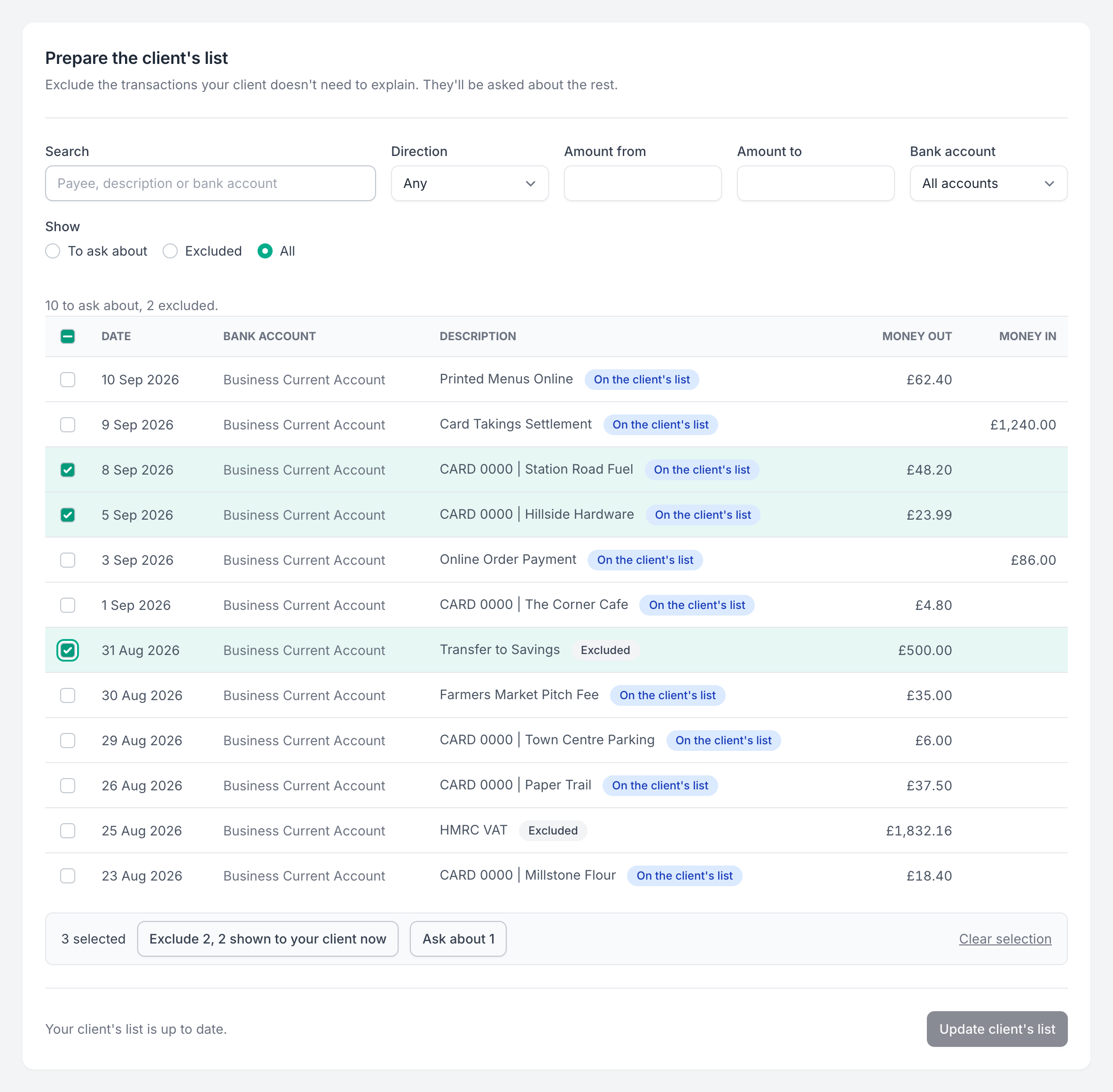
- Filters: search the description, and narrow by direction, amount, or bank account. Show switches between To ask about, Excluded, and All.
- Excluding: tick transactions and click Exclude, or Select all N matching to act on everything the filters match. To put an excluded transaction back, show Excluded, tick it, and click Ask about.
- Creating the list: click Create client’s list, or Update client’s list if the client already has one. Capture shows how many transactions will be on it, and warns you if transactions on the current list aren’t in the newest export, with their dates, so you can check you exported the date range you meant to. Confirm with Create list or Update list.
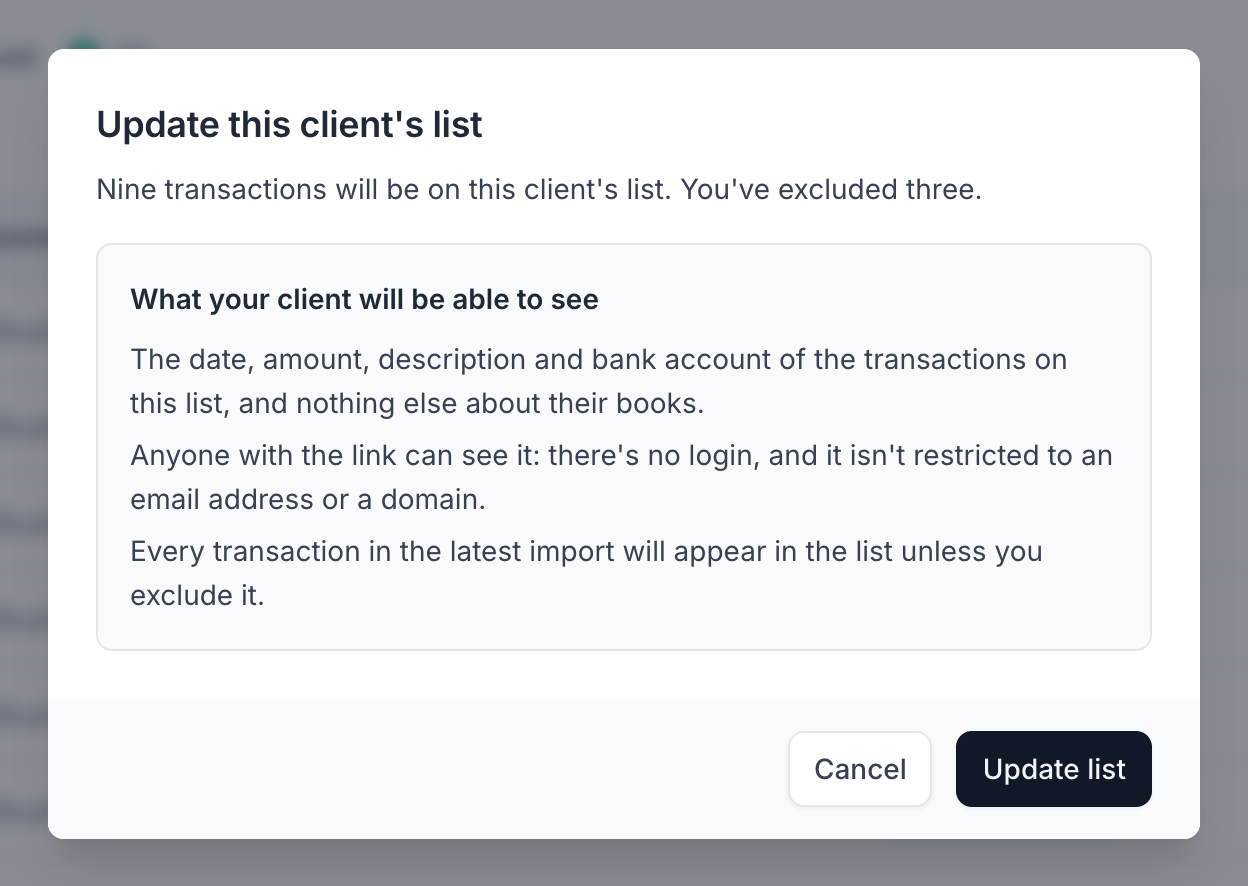
Creating or updating the list puts those transactions on the client’s page straight away. Capture doesn’t notify the client, so let them know yourself when there’s something new to answer.
A client has one current list. Updating it replaces the previous one, and a transaction the client answered keeps its answer if it’s still on the new list.
Seeing the client’s answers
Section titled “Seeing the client’s answers”The Missing receipts tab shows how many transactions are on the client’s current list and how many aren’t answered yet. Click See answers to open The client’s answers:
- Each transaction on the list, split into Money out and Money in, with the note the client wrote and the files they sent. Each file shows its status and links to its review screen.
- Which transactions aren’t answered yet. A transaction counts as answered once it has a note or a file.
- Not linked to a payment: files the client has sent that aren’t on any payment they’re being asked about. A file leaves this list once it’s published, discarded, or detected as a duplicate.
- The client’s link, with Copy link, so anyone in your organisation can share it.
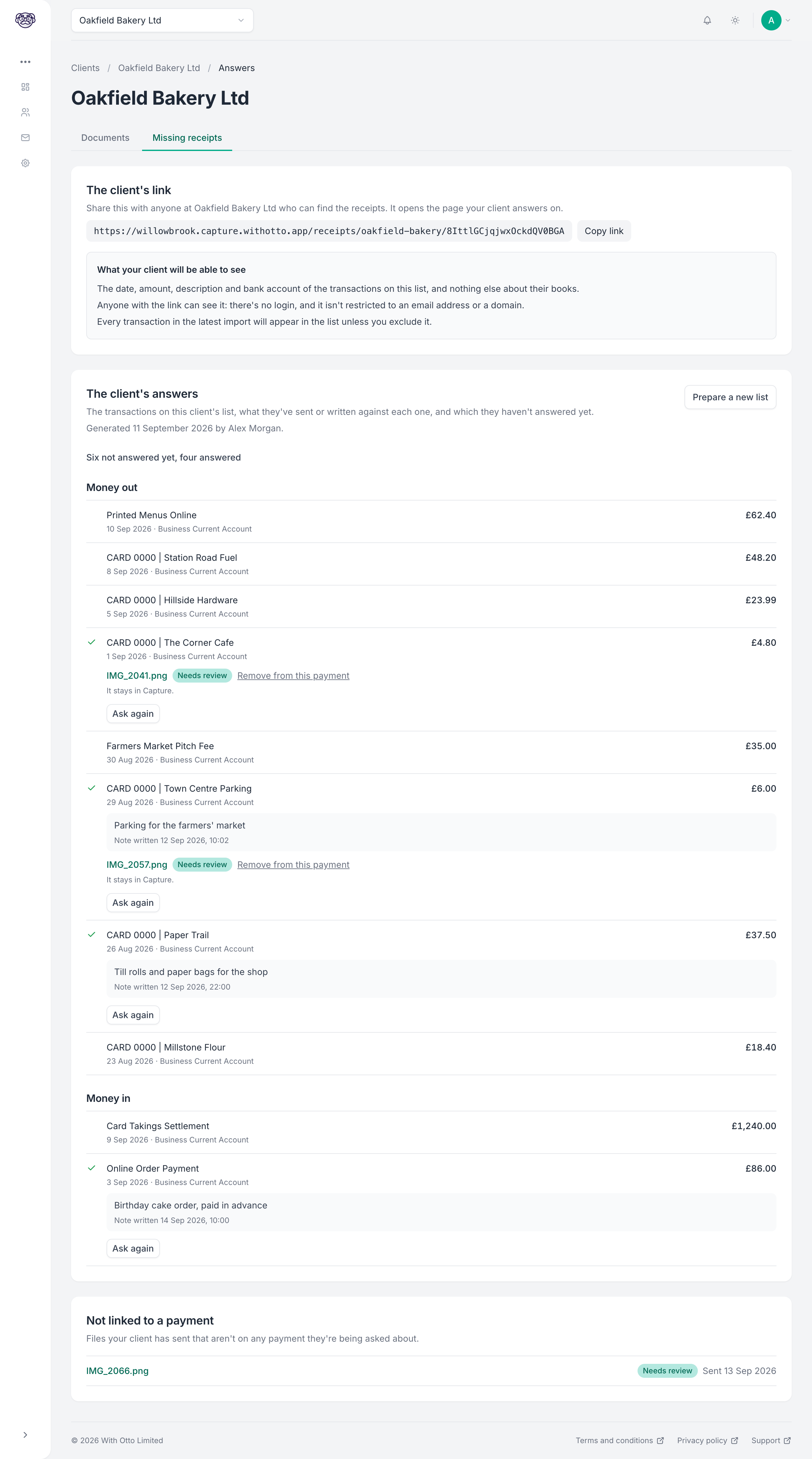
A note the client writes against a payment appears on the document’s review screen as Note from sender, so whoever reviews it can check the coding against what the client said. Otto usually reads the document before the note arrives, so his suggestions won’t normally reflect it. The client can change their note after sending the file, and the review screen shows what it said before.
Correcting an answer
Section titled “Correcting an answer”Two actions let you put a payment back in front of the client. Anyone in your organisation can use them.
- Remove from this payment takes one file off a payment, for example when the client sent the wrong receipt. The file stays in Capture.
- Ask again clears the client’s note and takes every file off the payment, so it’s unanswered again. Click Confirm? to go ahead.
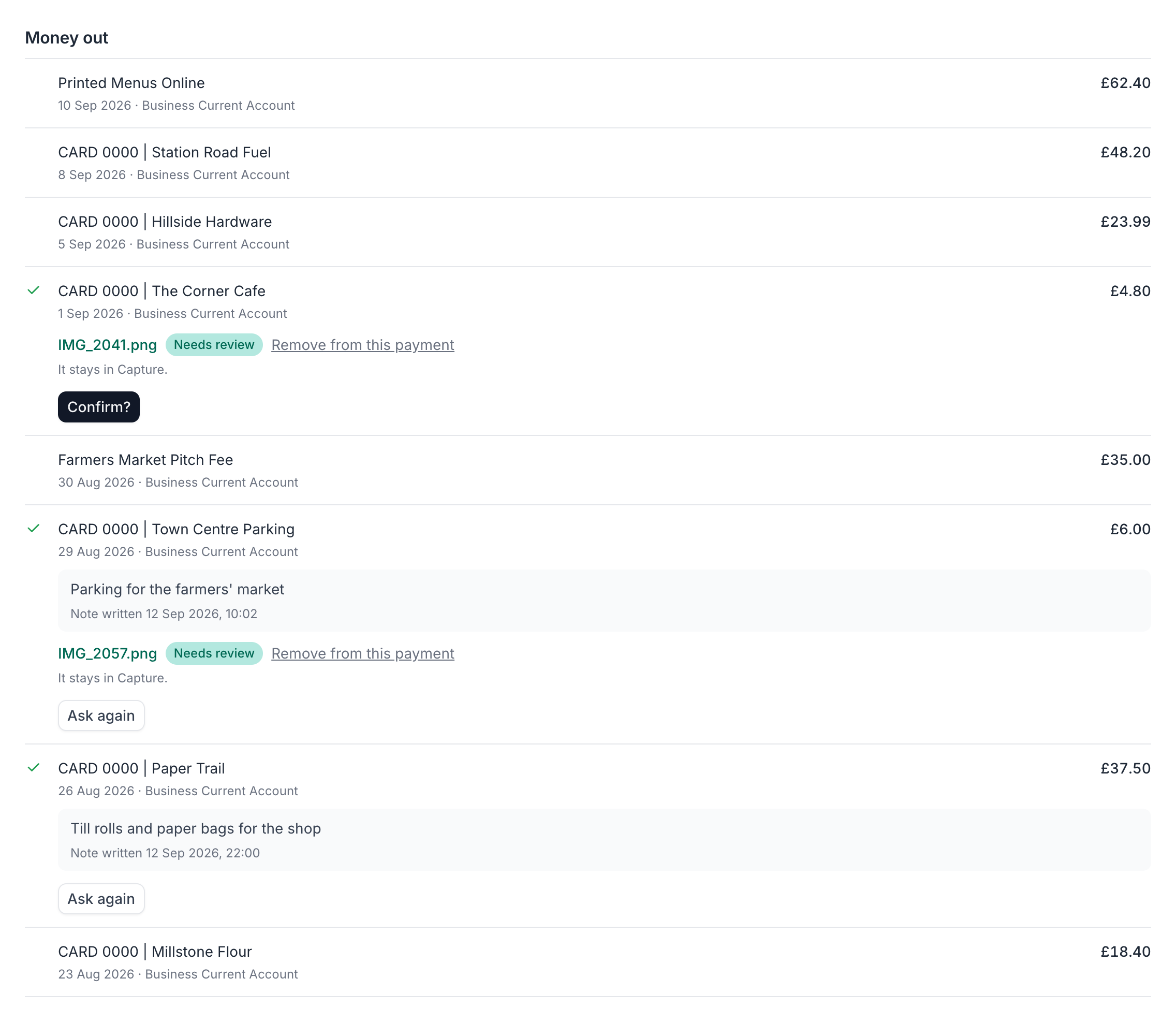
Neither action deletes anything. The files stay in Capture, keep going through processing, and move to Not linked to a payment on the client’s page, where the client can put them back on a payment. Capture keeps the note’s old wording as history. The client isn’t told that you asked again, so let them know.
If the client changes their answer after you open the page, Capture refuses Ask again rather than clear an answer you haven’t seen.
Billing
Section titled “Billing”Files sent from the client’s page are documents like any other, and count towards the client’s tier only when you publish them. Importing transactions and preparing lists are not charged. See Billing.
What Missing receipts does not do
Section titled “What Missing receipts does not do”- It doesn’t import bank transactions for FreeAgent or QuickBooks Online clients.
- It doesn’t read bank transactions from Xero. The file you export is the only way transactions reach Capture.
- It doesn’t reconcile anything or change anything in Xero. A receipt the client sends is published like any other document once you’ve reviewed it.
- It doesn’t contact the client. You share the link and tell them when there’s something to answer.