

Connecting your accounting platform
Otto Capture publishes finished bills and invoices to your client’s accounting platform. Capture supports Xero, FreeAgent, and QuickBooks Online, and each client connects to a single accounting platform organisation. On QuickBooks Online, Otto publishes bills and purchase credit notes only. This page covers the parts of connecting that work the same way on every platform. The exact authorisation steps, the terms you’ll see, and a few behaviours differ by platform, so for the specifics head to the Xero, FreeAgent, or QuickBooks Online page.
Adding a client
Section titled “Adding a client”-
From the Clients page in Capture, click Add client
-
Choose the accounting platform you want to connect
-
Authorise Capture on the platform’s sign-in screen
-
You’ll be redirected back to Capture, and data sync begins automatically
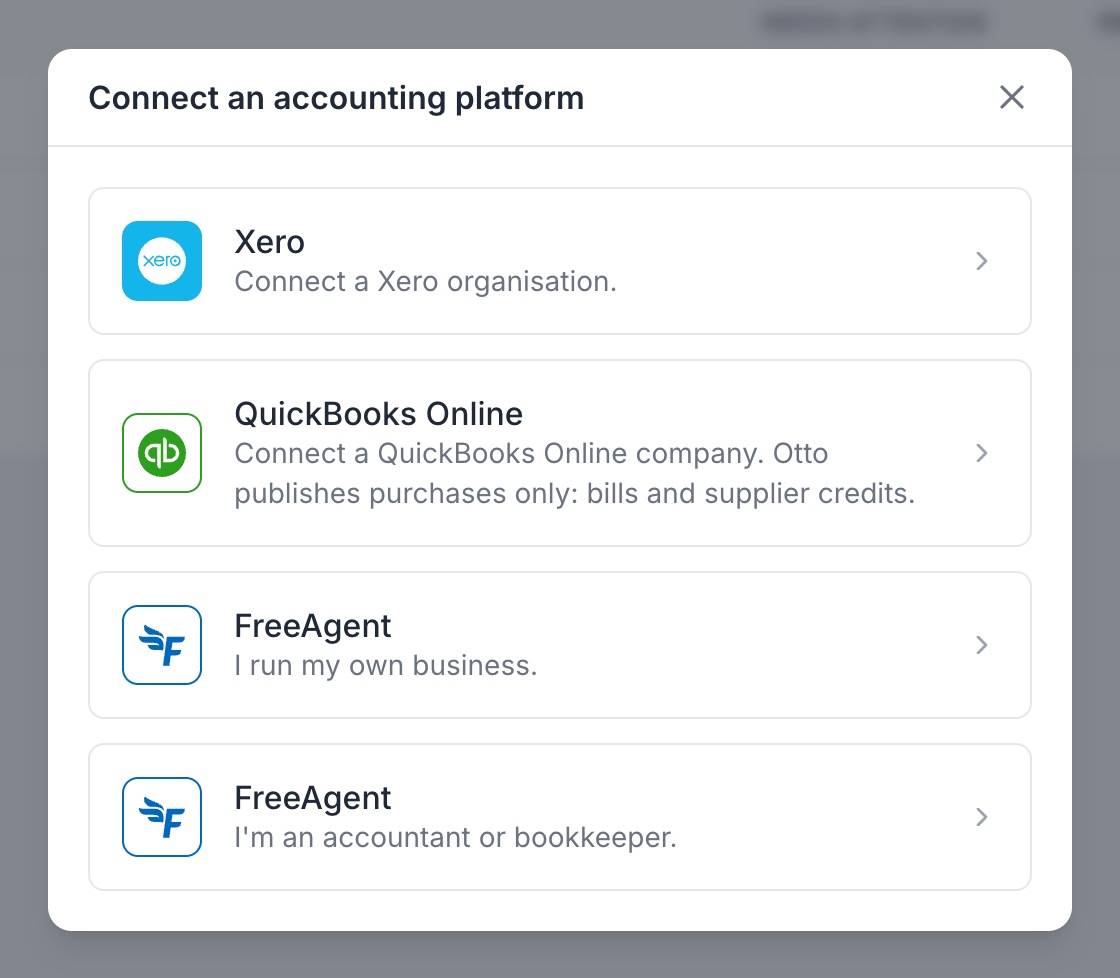
The platform you pick changes what happens at step 3. See Connecting Xero, Connecting FreeAgent, or Connecting QuickBooks Online for the steps, the permissions Capture asks for, and how each platform handles things like publish states and currencies.
What Capture syncs
Section titled “What Capture syncs”Once a client is connected, Capture reads the reference data it needs to process and publish documents:
- Contacts: to match suppliers and customers on your documents, and to create new ones during review.
- Account codes: the list of accounts or categories you code line items to.
- Tax rates: the rates Otto suggests and validates against.
- Currencies: the currencies the organisation can use.
- Organisation details: base currency, tax registration, and other settings Otto needs to process documents correctly.
The names of some of these differ by platform (Xero’s “chart of accounts” is FreeAgent’s “categories”, for example), and a few are platform-specific. Your platform page lists exactly what syncs.
Connection status
Section titled “Connection status”Each client shows one of four connection statuses on the Clients page and on the client settings page:
| Status | Meaning |
|---|---|
| Active | Connected and syncing. Otto can publish bills and invoices. |
| Pending setup | Connected, but setup isn’t finished. Finish setup before submitting documents. |
| Disconnected | The connection has been removed, either by you in Capture or, on some platforms, on the platform’s side. |
| Connection failed | Capture tried to sync or publish and the platform rejected the connection. Reconnect to resume. |
An Active client shows its connected organisation name on the client settings page, along with the last sync time.
A Pending setup client shows a Complete setup action in the Needs setup list on the Clients page, so you can finish connecting it before submitting documents.
Disconnecting and reconnecting
Section titled “Disconnecting and reconnecting”You can disconnect a client at any time from the client settings. Before you confirm, Capture shows what will be deleted and what stays. Disconnecting:
- Stops all data syncing between Capture and the platform, and prevents new documents from being published
- Deletes the data synced from the platform: contacts, accounts or categories, tax rates, currencies, and tracking categories or classes
- Deletes the supplier matches Otto has learned for the client
- Does not delete any documents already in Capture, whether published or not
- Does not remove any bills or invoices already published to the platform
- Stops the client’s submission page working until you reconnect. Documents sent by email and WhatsApp are still accepted
The same data is deleted when access is revoked from inside the platform and Capture picks that up. A connection that ends without anyone disconnecting it, for example because your subscription lapses, keeps its synced data, so the client is as you left it if you come back. Once such a client is disconnected, an organisation admin can remove that data from the client settings with Delete synced data.
To reconnect, open the client settings and click Reconnect. Clients that need attention also show a Reconnect action in the Needs setup list on the Clients page. Reconnecting syncs the platform’s data again, and Otto resumes publishing. It doesn’t bring back the supplier matches Otto had learned, so he builds those up again as you publish.
Reconnecting a client you disconnected doesn’t bring back its coding history either. The bills you published before disconnecting stay in Capture, but Otto no longer uses them to suggest coding. He builds the history up again from the bills you publish after reconnecting. A connection that ends without anyone disconnecting it keeps its coding history along with the rest of its synced data, unless an admin deletes that data.
How a connection comes to be revoked, and whether revoking it inside the platform is mirrored back into Capture, depends on the platform. See the Xero, FreeAgent, and QuickBooks Online pages for the details.