

Client submission page
Alongside web upload, email, and WhatsApp, each client can have its own submission page: a web address you share with whoever sends their receipts and invoices. They open it, take a photo or choose files they already have, and the documents arrive in that client’s review queue. There’s nothing to download, no account to create, and nothing for you to set up beyond sharing the link.
It suits the people who never quite get on with the other routes. Some clients won’t set up an email forwarding rule, and some would rather not use WhatsApp for work.
How it works
Section titled “How it works”-
You share the client’s submission link with whoever sends in their receipts and invoices.
-
They open it on a phone or computer, and take a photo or pick files they already have.
-
The documents go straight into that client’s review queue.
Documents submitted this way go through the same processing pipeline as any other submission, and appear in your review queue alongside documents from every other source. If the same file arrives twice, it’s picked up as a duplicate exactly as it would be on any other route.
Sharing the link
Section titled “Sharing the link”Open the client’s settings and go to Client Submission. The Client submission page area holds the link, which is unique to that client.
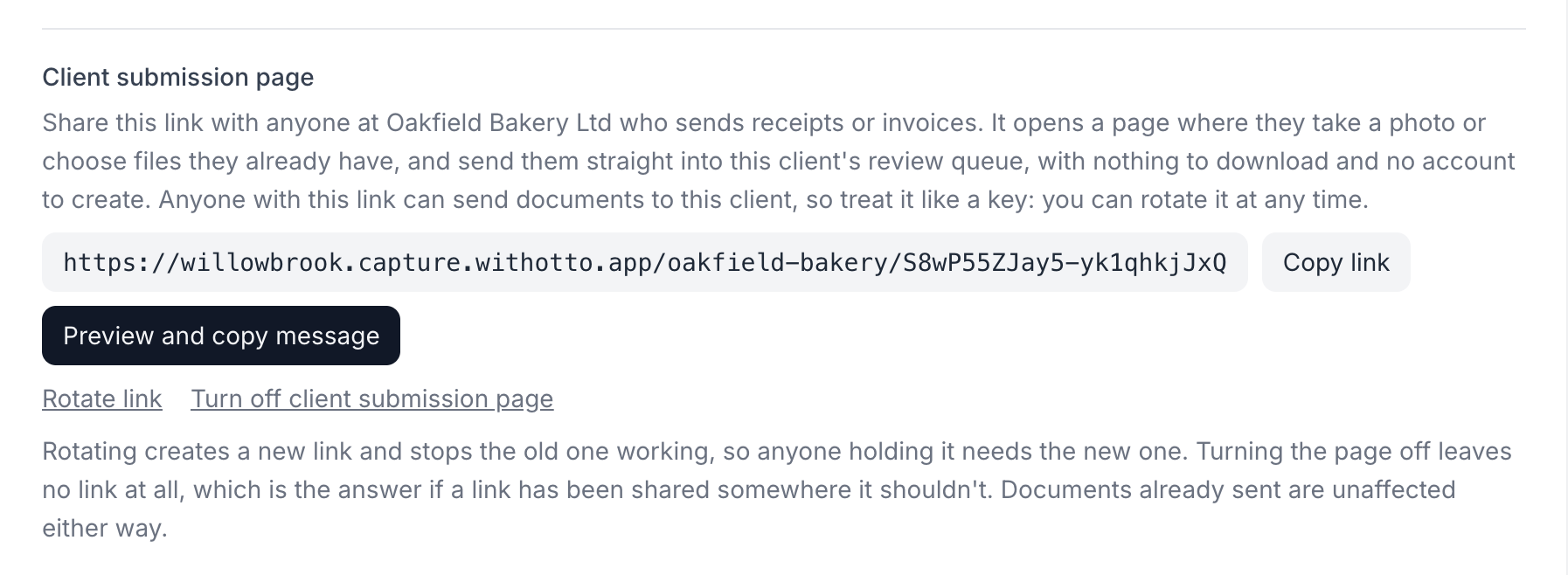
You have two ways to hand it over:
- Copy link copies just the link, ready to paste wherever you like.
- Preview and copy message shows a short, ready-to-send message with the link already in it, written as if it comes from you. Copy the whole message or just the link.
However you share it, the person receiving it doesn’t need an Otto Capture account, and you don’t need to know anything about them in advance.
What the person sending documents sees
Section titled “What the person sending documents sees”The page is titled with your organisation’s name and the client’s, so whoever opens it can see it’s the right one. They choose files or take a photo, and can send several at once. Each file is confirmed on the page once it has been sent, and the same link works every time they have more.
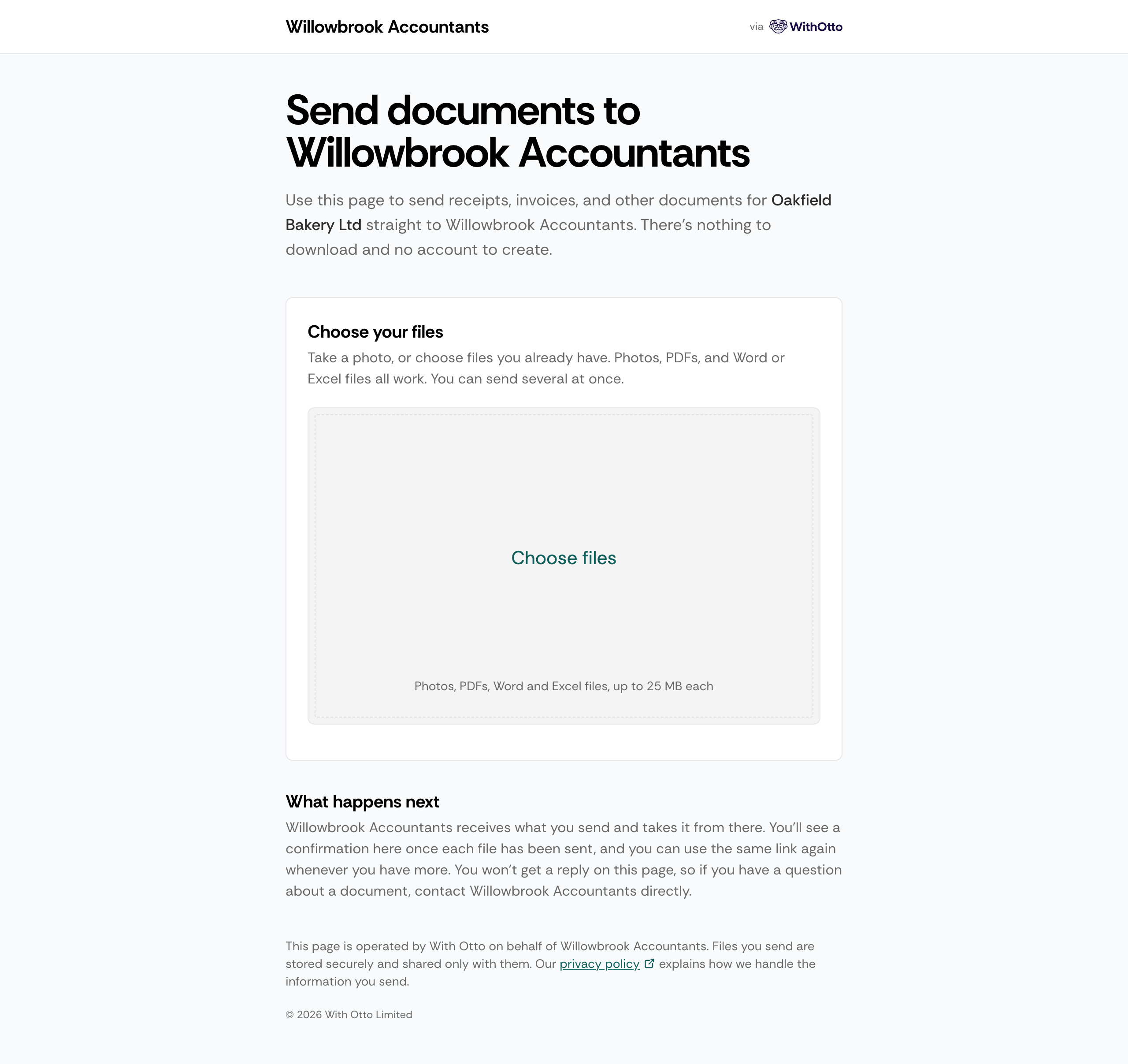
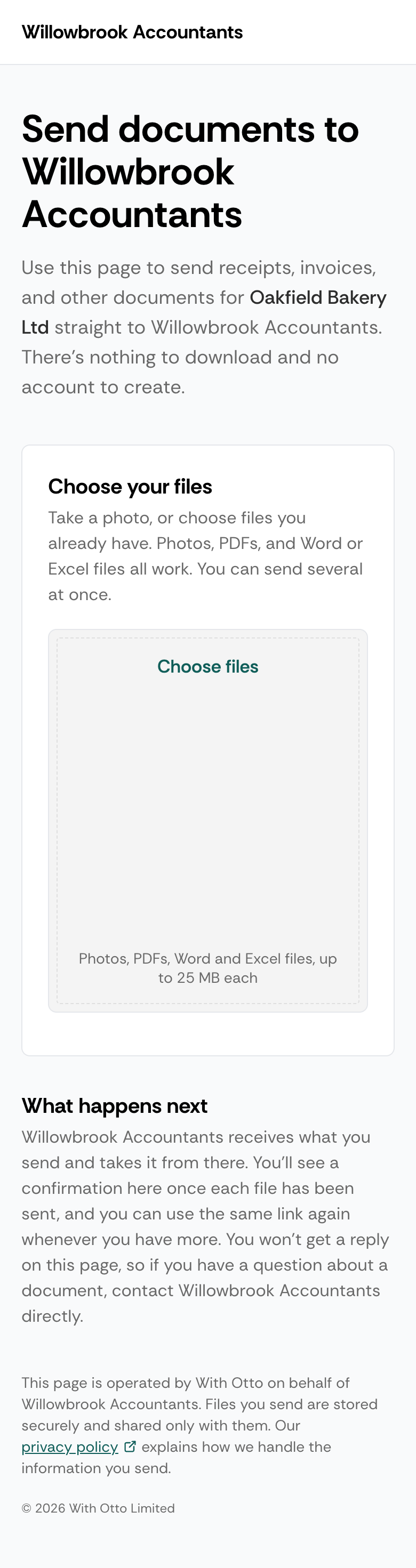
Photos, PDFs, and Word and Excel files are all accepted, up to 25 MB each. For the full list, see supported file types.
The page doesn’t reply, and it isn’t a conversation. If the sender has a question about a document, they need to contact you directly, and the page tells them so.
Search engines are told not to index the page, and the link isn’t passed on to any other site the sender might visit next.
Treat the link like a key
Section titled “Treat the link like a key”Anyone holding the link can send documents to that client, and nothing else is asked of them. That’s the point of it, and it’s also the thing to be aware of when you share it.
It differs from a WhatsApp invite in one important way. A WhatsApp invite is only used to connect. Once someone has registered, the link stops mattering to them, so rotating it prevents anyone new joining while everyone already connected carries on, and you remove individual senders separately. A submission link is used every time a document is sent, so it stays live for as long as anyone is using it. Rotating it stops the page working for everyone holding it, all at once, and there’s no way to cut off one person while leaving the rest.
That makes it worth a little thought about how you share it. A direct message or an email to a named person is easier to keep track of than a link posted somewhere several people can see.
Rotating and turning the page off
Section titled “Rotating and turning the page off”Two actions are available, and both are admin-only. Anyone in your organisation can view, copy, and share the link.
- Rotate link resets who has access while keeping the page available. A new link is created straight away and the old one stops working, so everyone who should still be sending documents in needs the new link, and anyone who has bookmarked or saved the old one needs to update it.
- Turn off client submission page switches the route off for that client altogether. Nothing replaces the link, so there’s nothing to share and no way to submit through the page at all.
The choice between them isn’t about who is cut off, since both stop the current link working for everyone holding it. It’s about whether the client carries on using the page. Rotate when the page is still the right route and only the link needs replacing. Turn the page off when the client shouldn’t be using this route.
Documents already submitted are unaffected either way. Turning the page back on later creates a fresh link, and a revoked link stays dead, so an old one can never come back.
What breaks a link, and what doesn’t
Section titled “What breaks a link, and what doesn’t”The link is made up of your organisation prefix, the client’s prefix, and a code. Only some of those matter to whether it keeps working.
| Change | Effect on the link |
|---|---|
| Changing the client’s name or prefix | Keeps working. The address updates itself when the page is next opened |
| Changing your organisation prefix | Breaks every client’s link. Share the new ones |
| Disconnecting the client’s accounting platform | Stops working. The same link resumes once the client is reconnected and set up again |
| Rotating the link | Breaks the old one immediately |
| Turning the page off | Breaks the old one immediately |
If someone opens a link that no longer works, they’re told the link isn’t active and asked to get a new one from whoever sent it. They aren’t told why, so a dead link gives nothing away about your organisation or your clients.
Spam protection
Section titled “Spam protection”Because the page is open to anyone holding the link, there are measures in place to stop it being used to flood your review queue. If they’re triggered, the sender sees a message saying the link has reached its limit for now and asking them to try again later, and they can send again once the limit clears.
The limits are set well above what a client would send in normal use, so ordinary submissions shouldn’t come close to them. If a client tells you they’re hitting the limit while sending a reasonable number of documents, please contact support.